Widget & settings
The Home Screen widget for quick scans, the Settings screen, your profile and the app language, deleting the account and working on iPad.
The screenshots show the app in English.
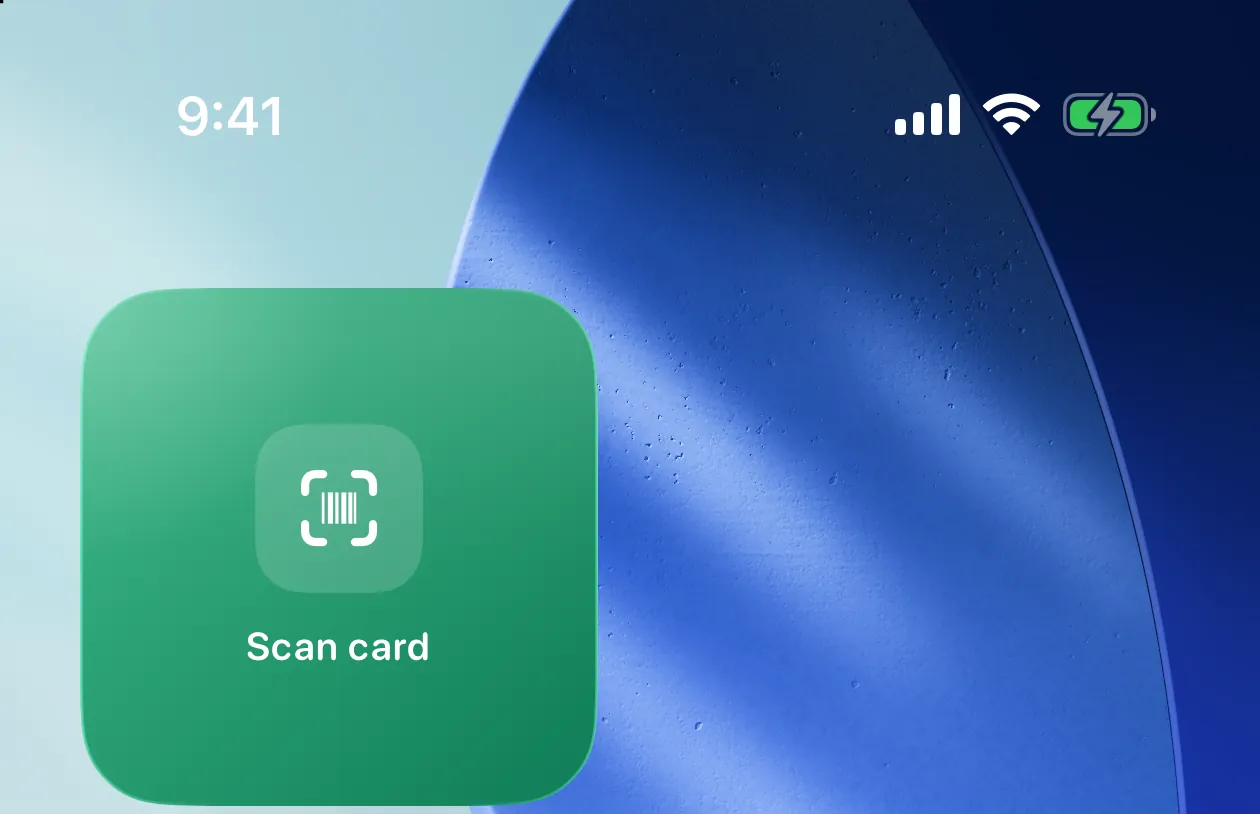
Scan widget
The small Scan card widget opens the scanner in one tap, without going through the app.
Edit the Home Screen
Touch and hold an empty area of the Home Screen, then tap Edit in the top left corner → Add Widget.
Find Pikarta
Search for Pikarta and pick the Scan card widget.
Add it
Tap Add Widget and place it where it's easy to reach at the counter.
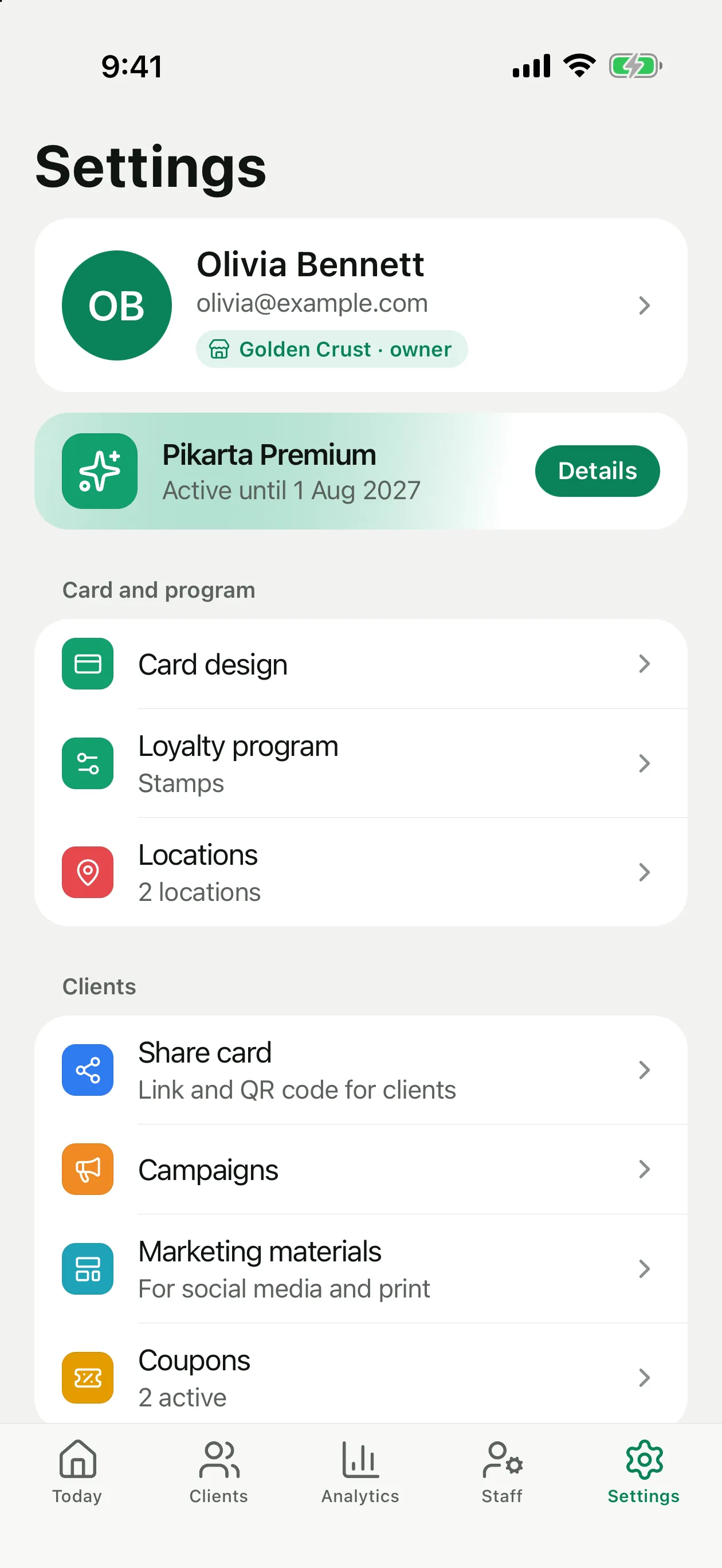
The Settings screen
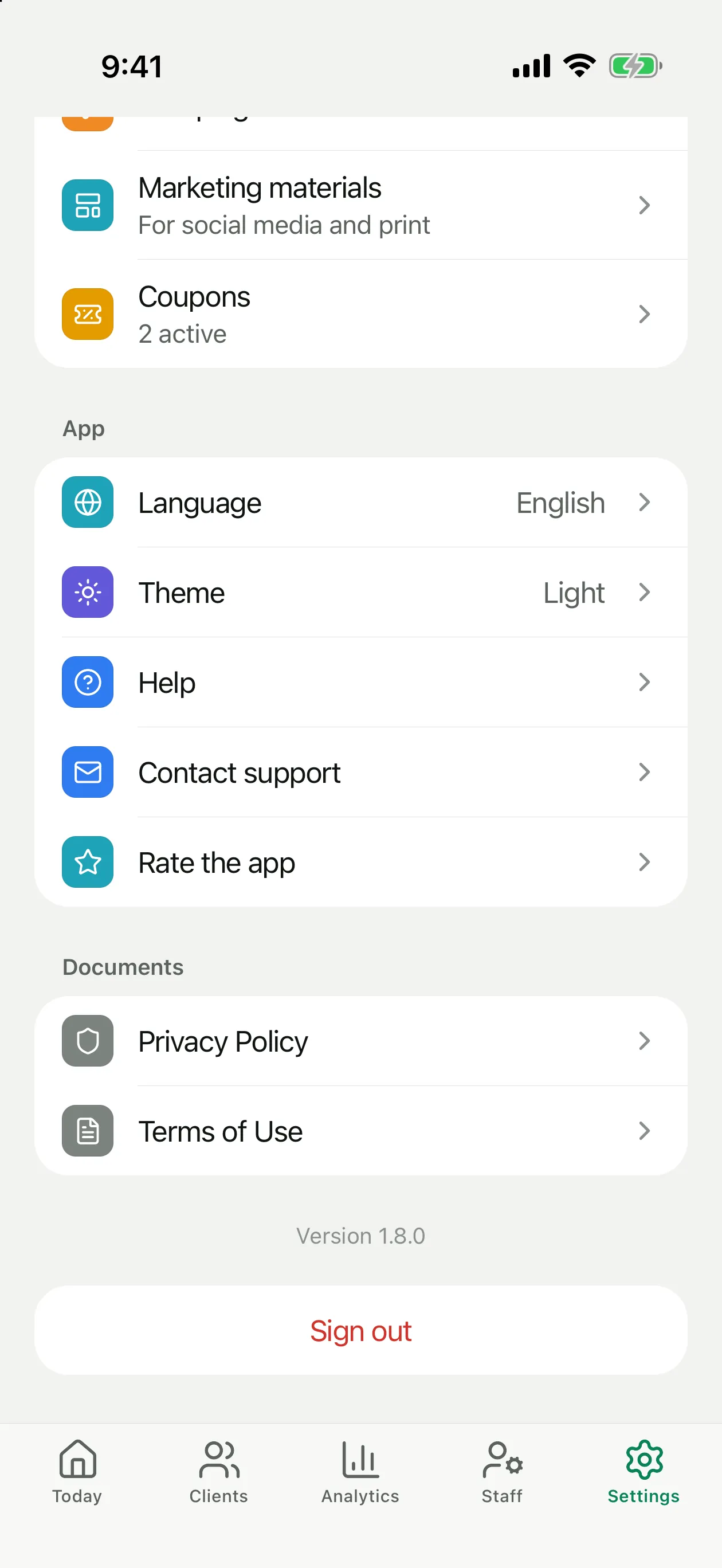
At the top are your profile and the Pikarta Premium status. Below are the groups:
Profile and password
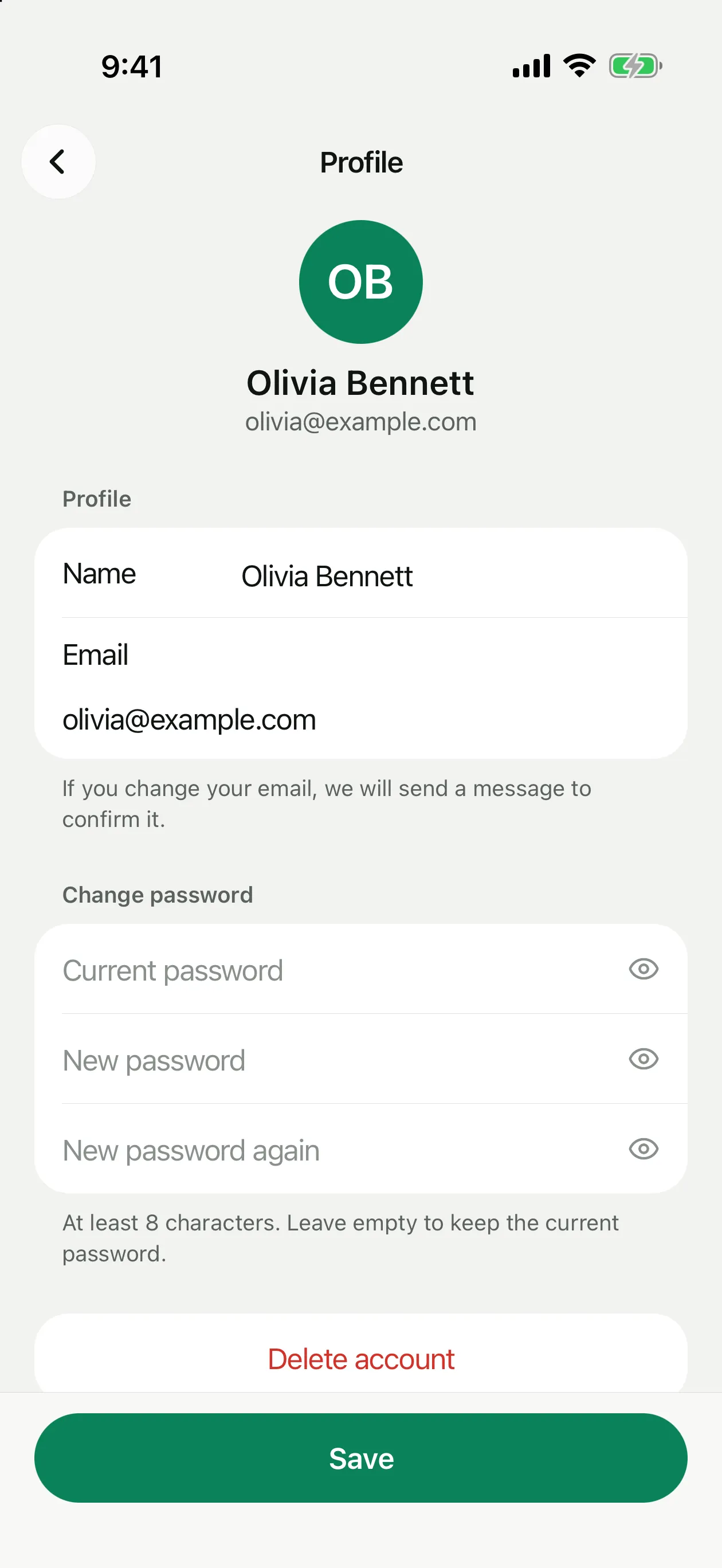
Tap your name at the top of Settings. Here you change your name and email (we send a message to the new address to confirm it) and the password: enter the current one and the new one twice, at least 8 characters. Leave the password fields empty to keep the current password, then tap Save.
Language and theme
Settings → Language: English, Русский, Español or Français. The app switches right away. Theme is Light or Dark.
Deleting the account
Open the profile
Settings → your name → Delete account at the bottom.
Check what will be deleted
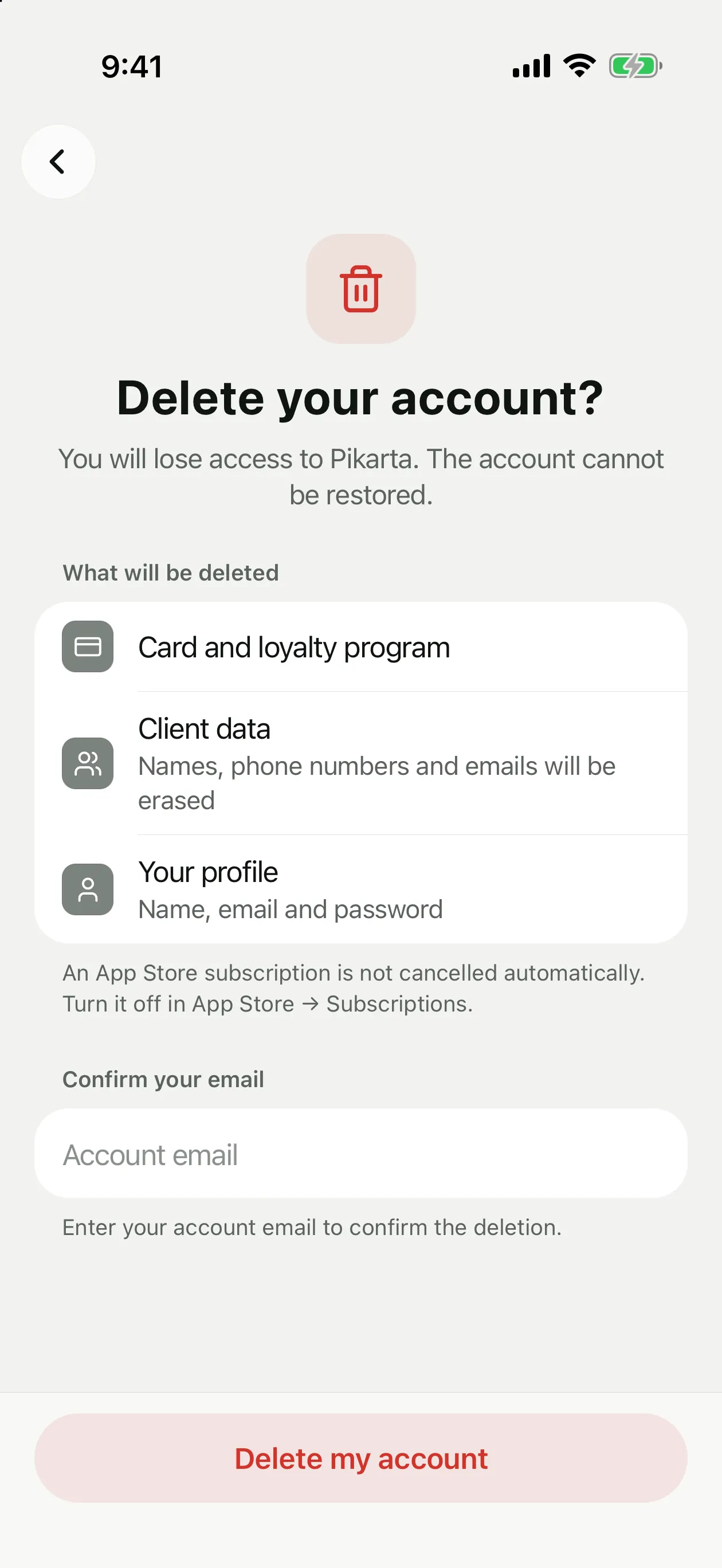
The card and loyalty program, client data (names, phone numbers and emails are erased) and your profile.
Confirm with your email
Enter the account email and tap Delete my account. This can't be undone.
Cashiers can't delete their account on their own: in Account they tap Request account deletion, and the owner approves or denies it. Details: Team & Cashiers.
iPad
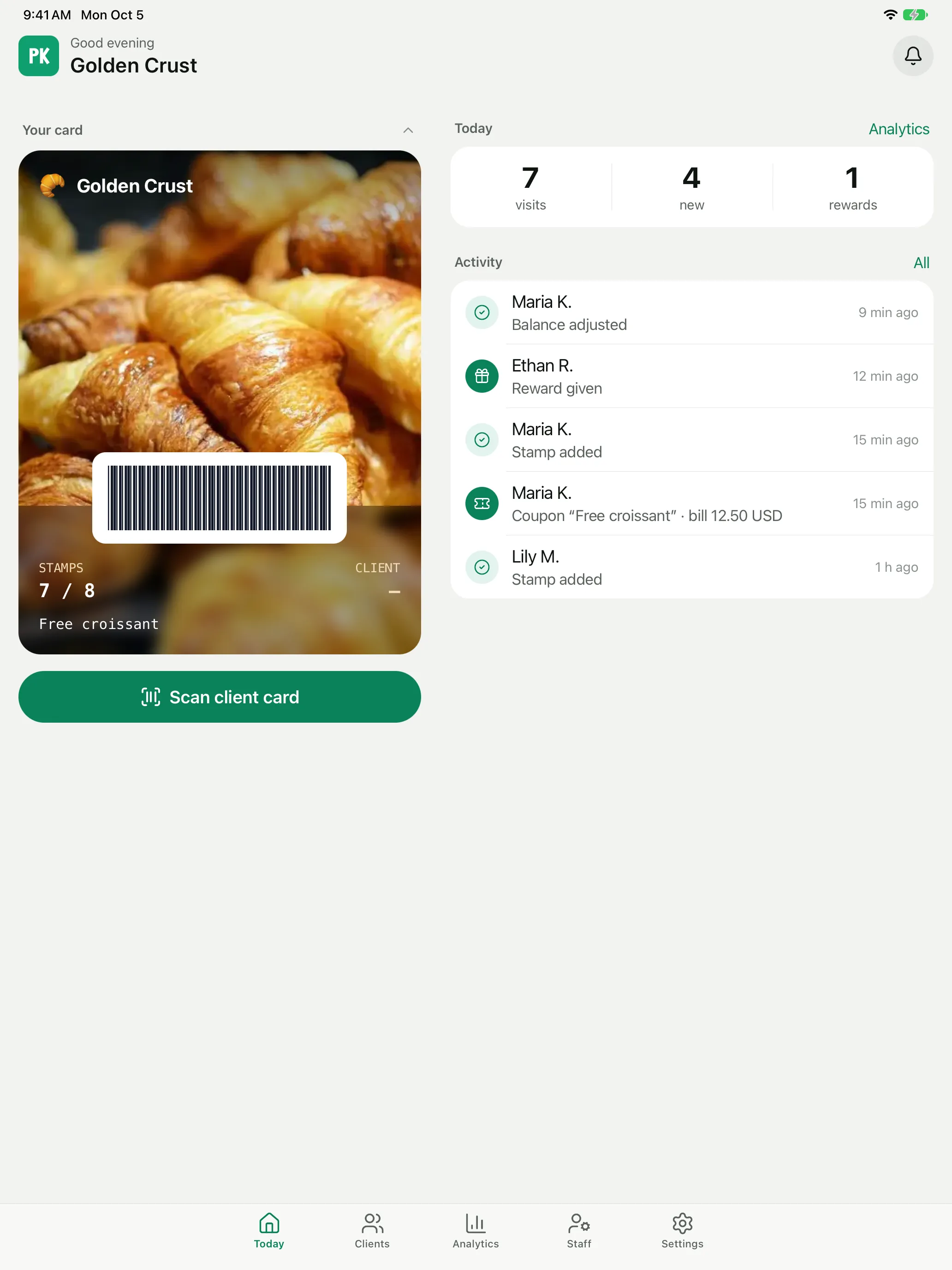
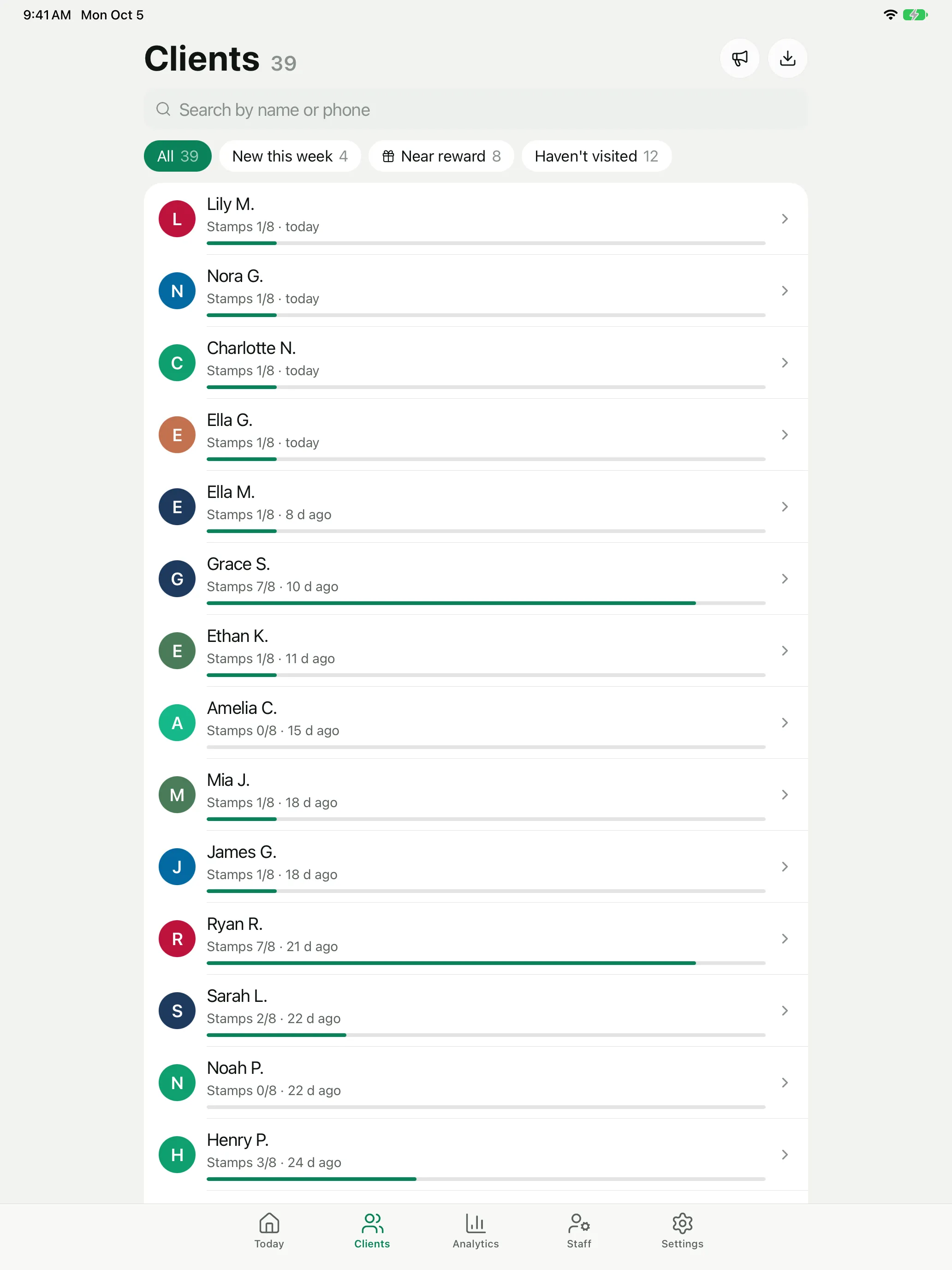
Pikarta works on iPad with the same account. On the Today screen the card and the scan button sit next to today's numbers and activity, and lists such as Clients stay in a comfortable column in the middle of the screen.
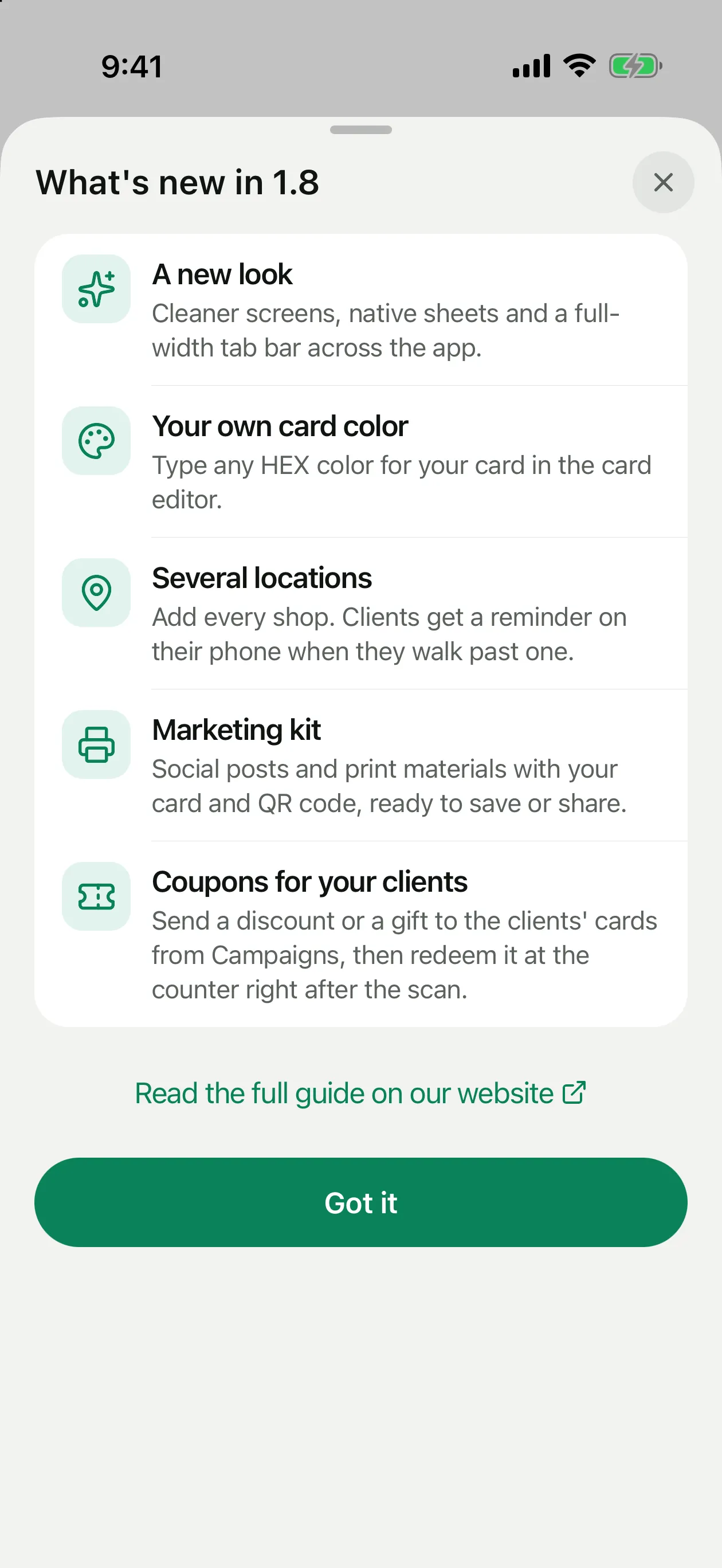
What's new after an update
After an update the app shows a short “What's new” sheet once. The full story of every version is in the release notes.