Stamps on the card
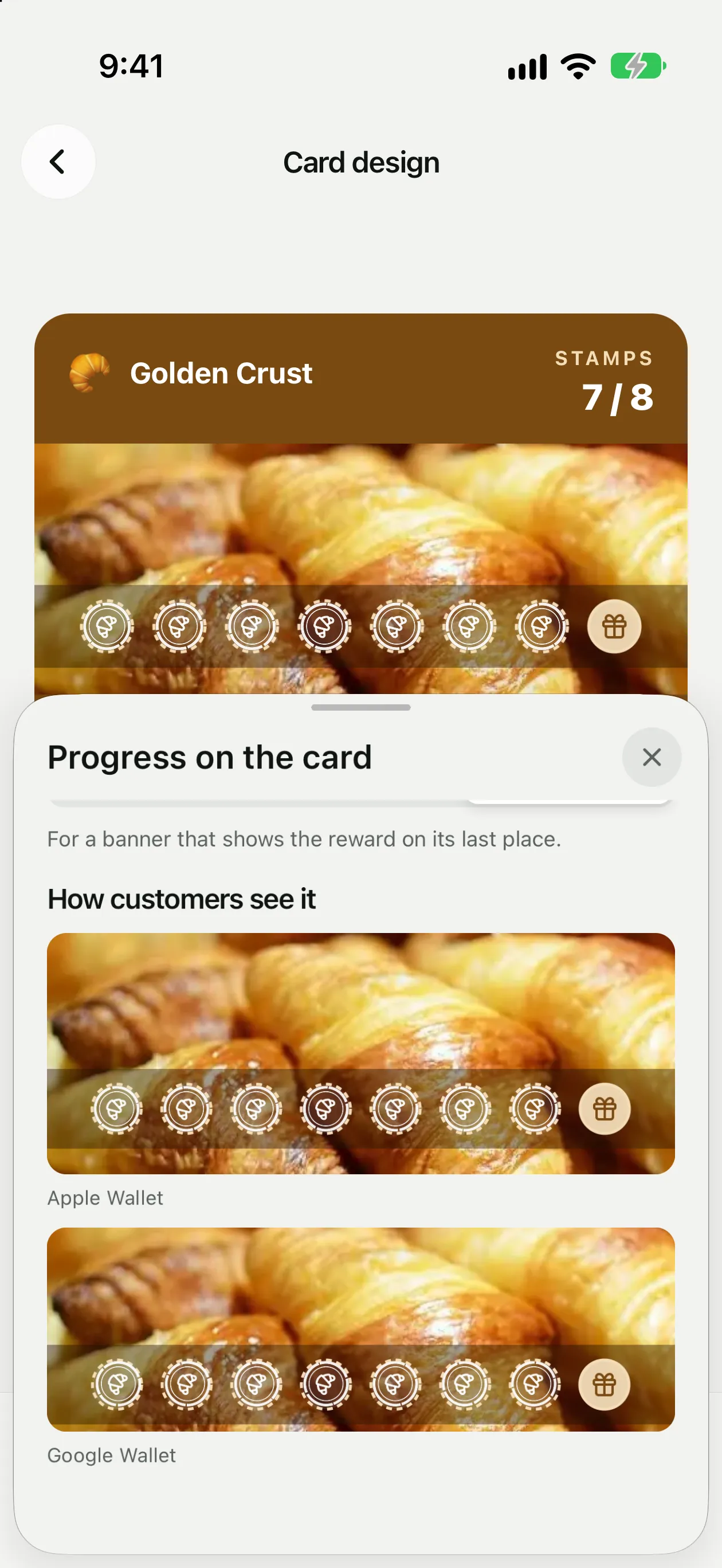
Your clients see their progress right on the card in Apple Wallet and Google Wallet: one stamp for every visit, drawn on the card's banner. The card updates itself after each scan.
The screenshots show the app in English.
How it works
Stamps on the card work with the Stamps program, for cards of up to 12 stamps. Every stamp a client collects fills the next place on the banner. Apple Wallet shows it on the card's banner and on the iOS 27 Poster card, Google Wallet on the card's top image.
Cards already in your clients' wallets update on their own after the next scan. Nothing has to be issued again.
Turn it on
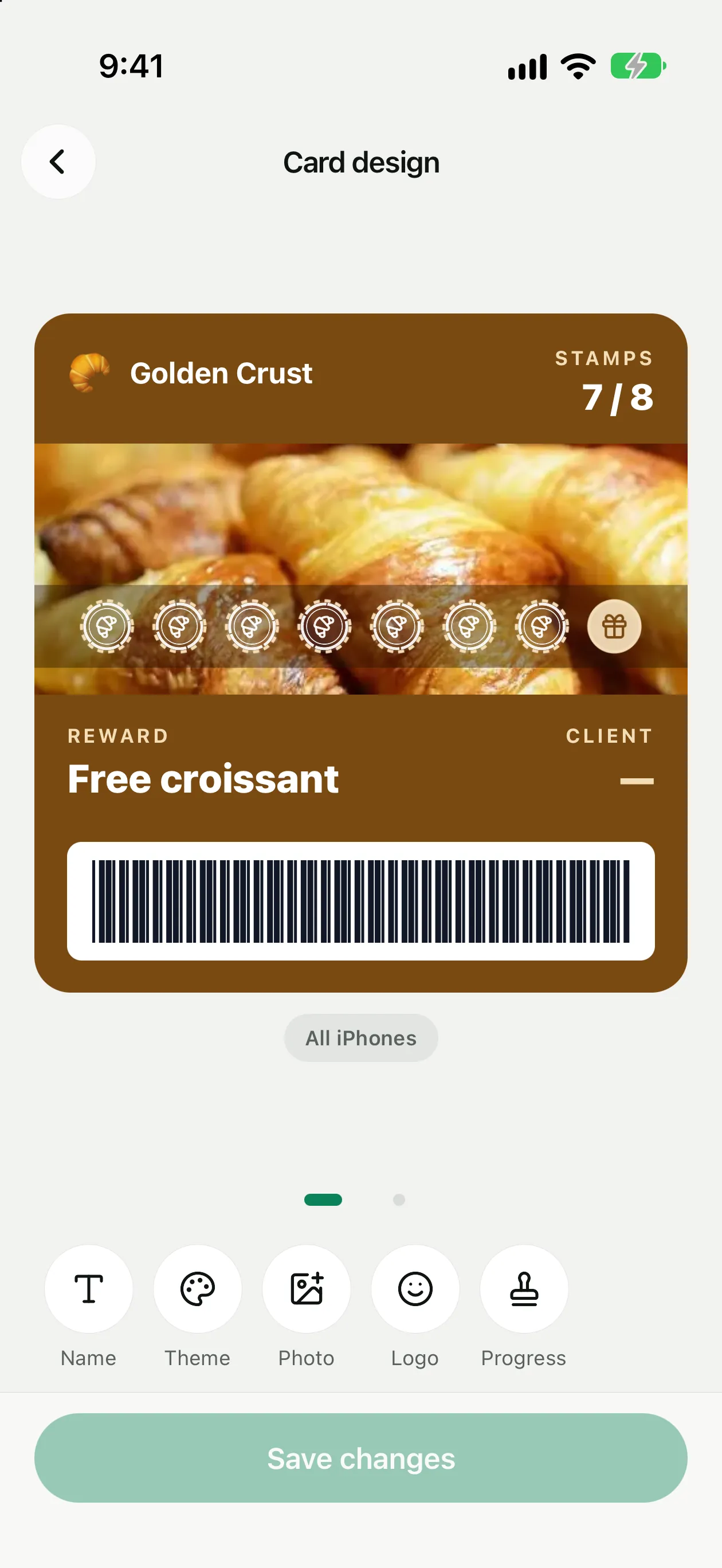
Open the card editor
Settings → Card design, then Progress in the bottom row.
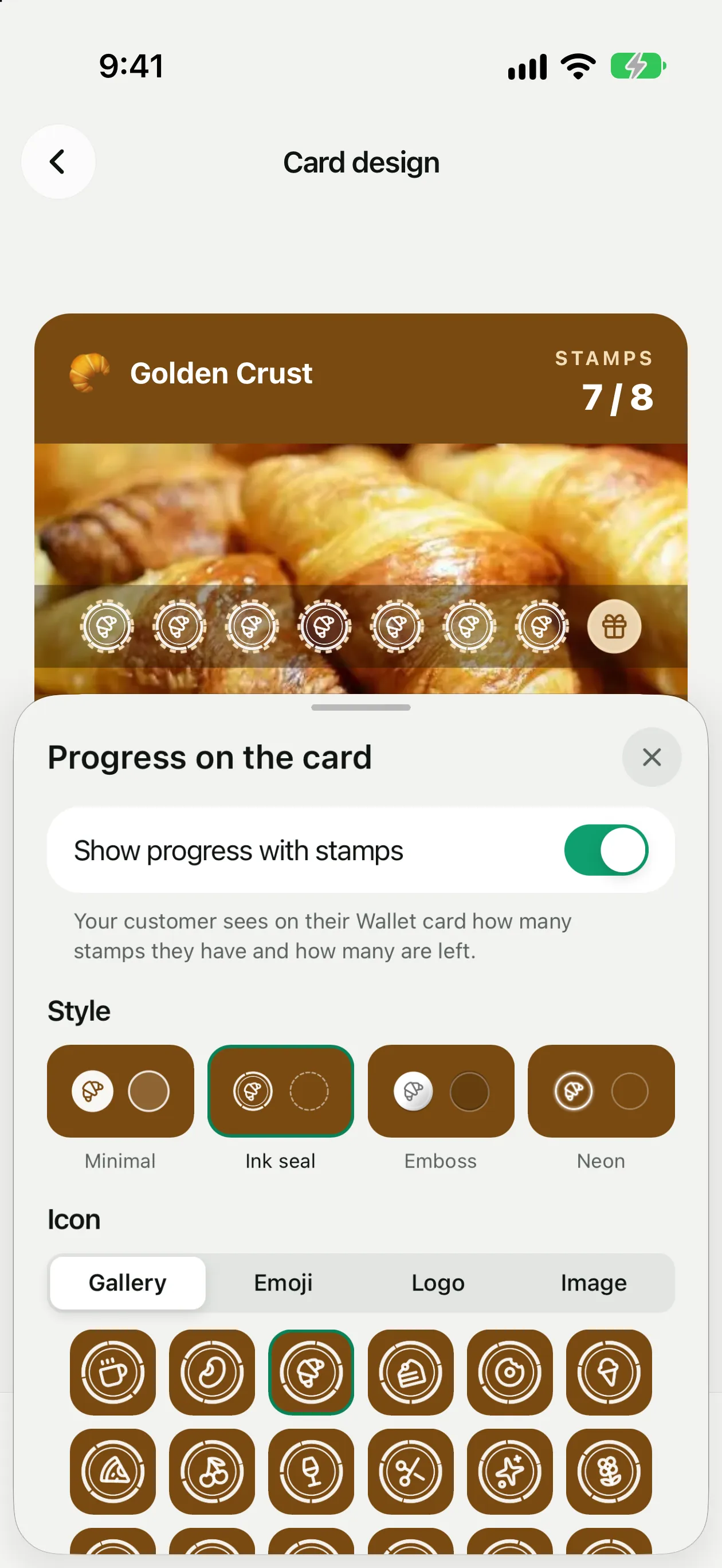
Turn on Show progress with stamps
The card above the sheet shows every change live.
Choose a style
Minimal, Ink seal, Emboss or Neon.
Choose the icon
Gallery has 18 ready icons, from a coffee cup and a croissant to scissors and a paw. You can also use an Emoji, your card's Logo or your own Image: a square PNG with a transparent background looks best.
Save
Tap Save changes in the card editor.
Where the stamps go
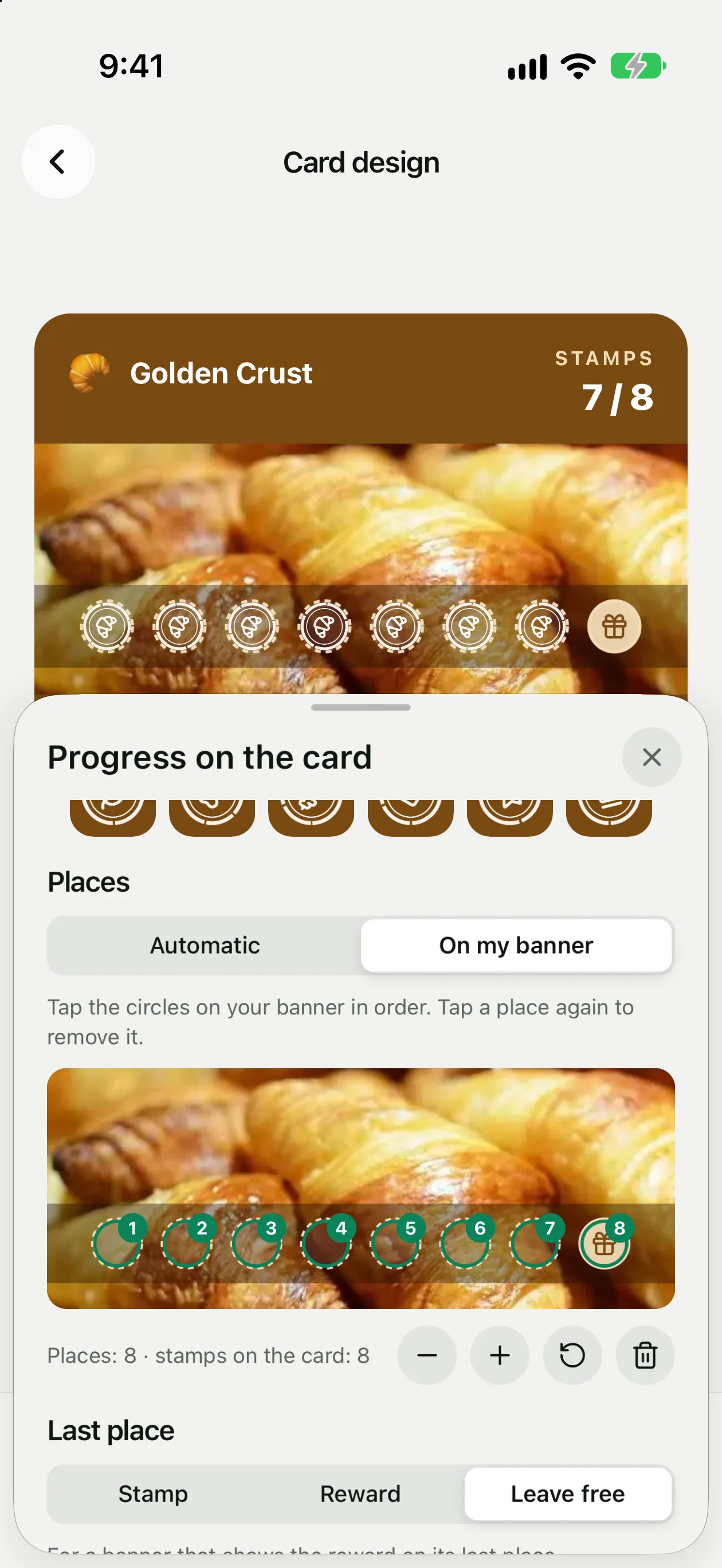
Automatic. Pikarta lays out one place for each stamp: one row for up to 8 stamps, two rows above that. It suits a banner with a calm photo or a plain color.
On my banner. Draw the circles on your banner yourself, or ask your designer, and upload it in Photo. Then tap the circles in order. Tap a place again to remove it; Size, Undo and Clear sit under the banner. Mark as many places as the card has stamps.
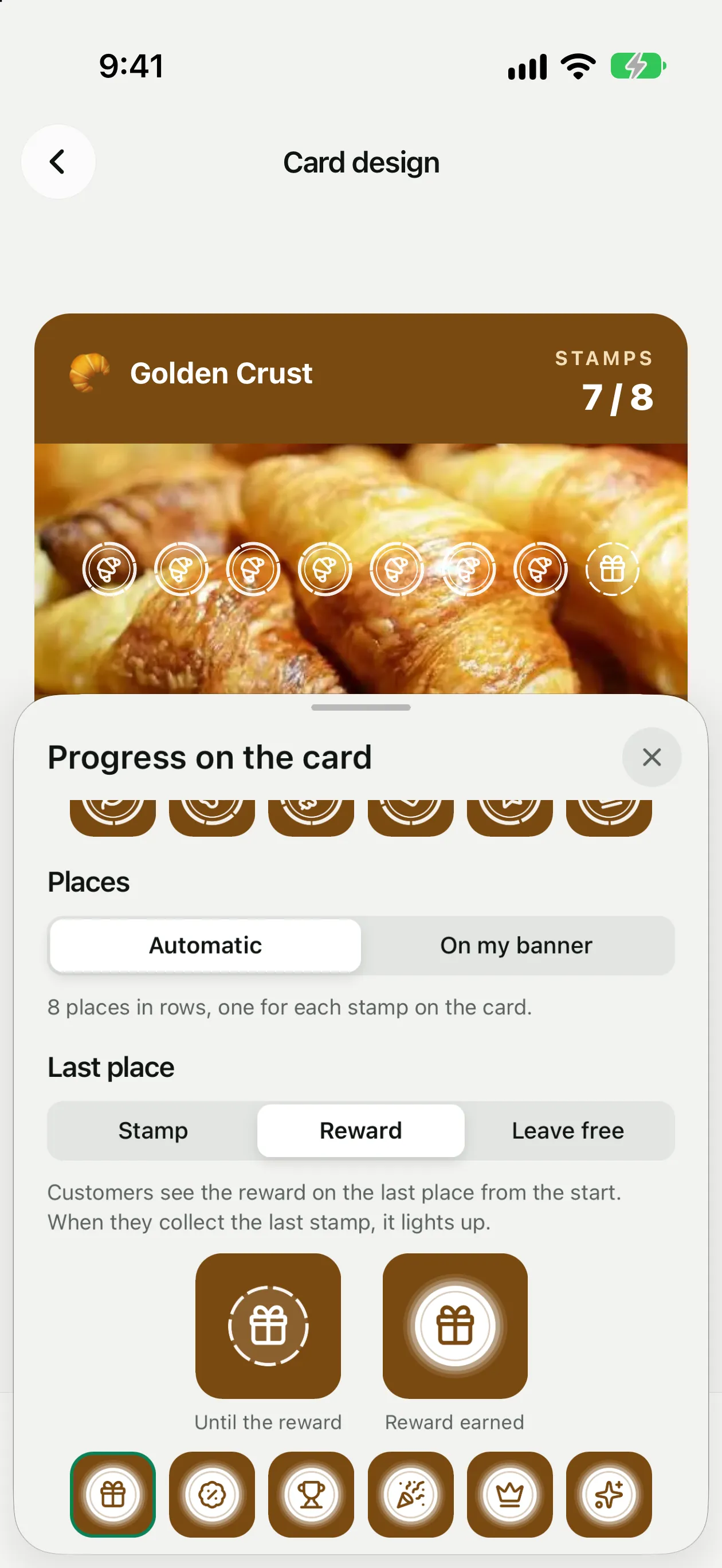
The last place
Choose what happens on the Last place:
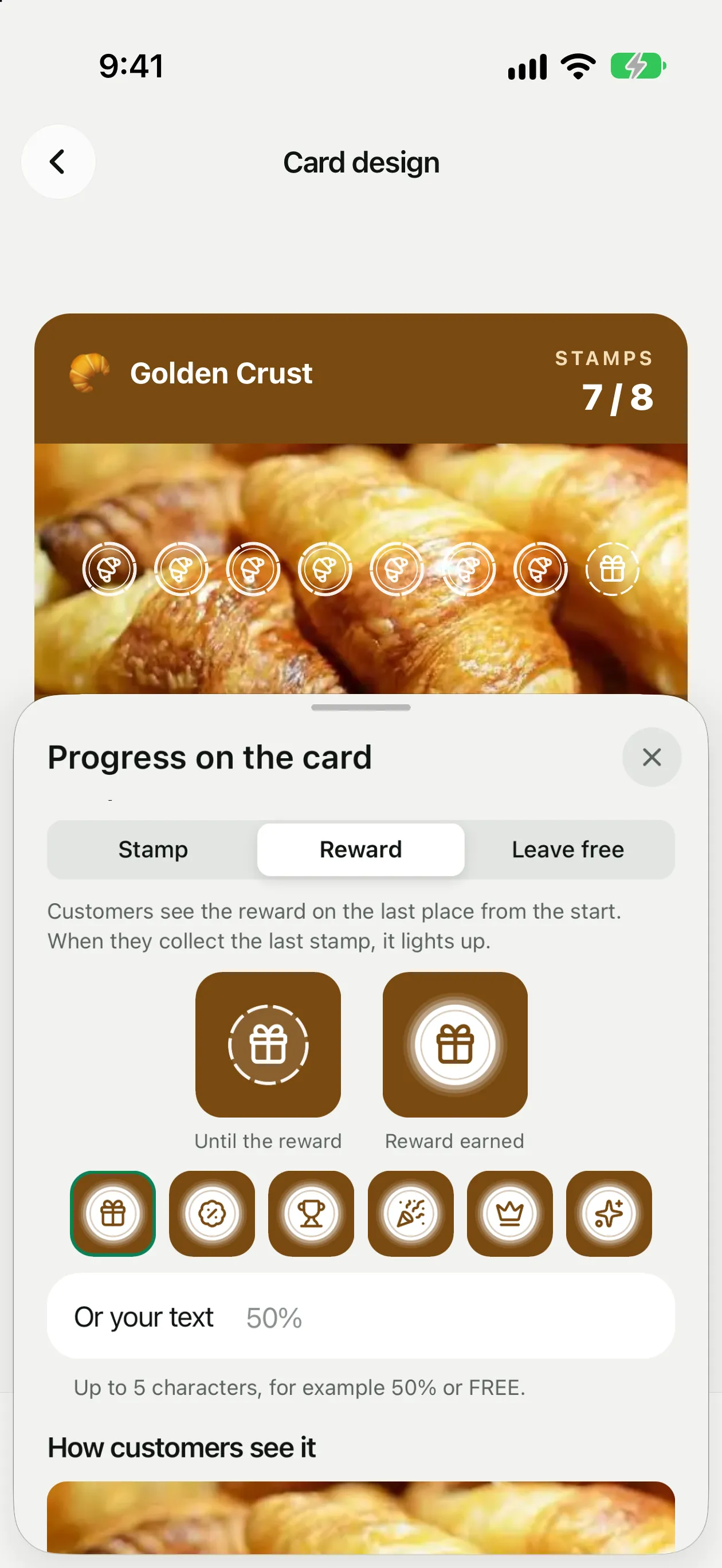
How customers see it
At the bottom of the sheet, How customers see it shows the banner the way Apple Wallet and Google Wallet crop it. If a crop cuts off some places, the preview says how many: move them closer to the middle or switch to Automatic.