Coupons
Send a gift or a discount straight to your clients' loyalty cards. The coupon appears on the card in Apple and Google Wallet, and the cashier redeems it right after scanning the card.
The screenshots show the app in English.
What a coupon is
A coupon is a one-time offer on top of your loyalty program: a free item, a percentage off the bill or a fixed amount off. It travels on the card the client already has: no second pass and no code to type in.
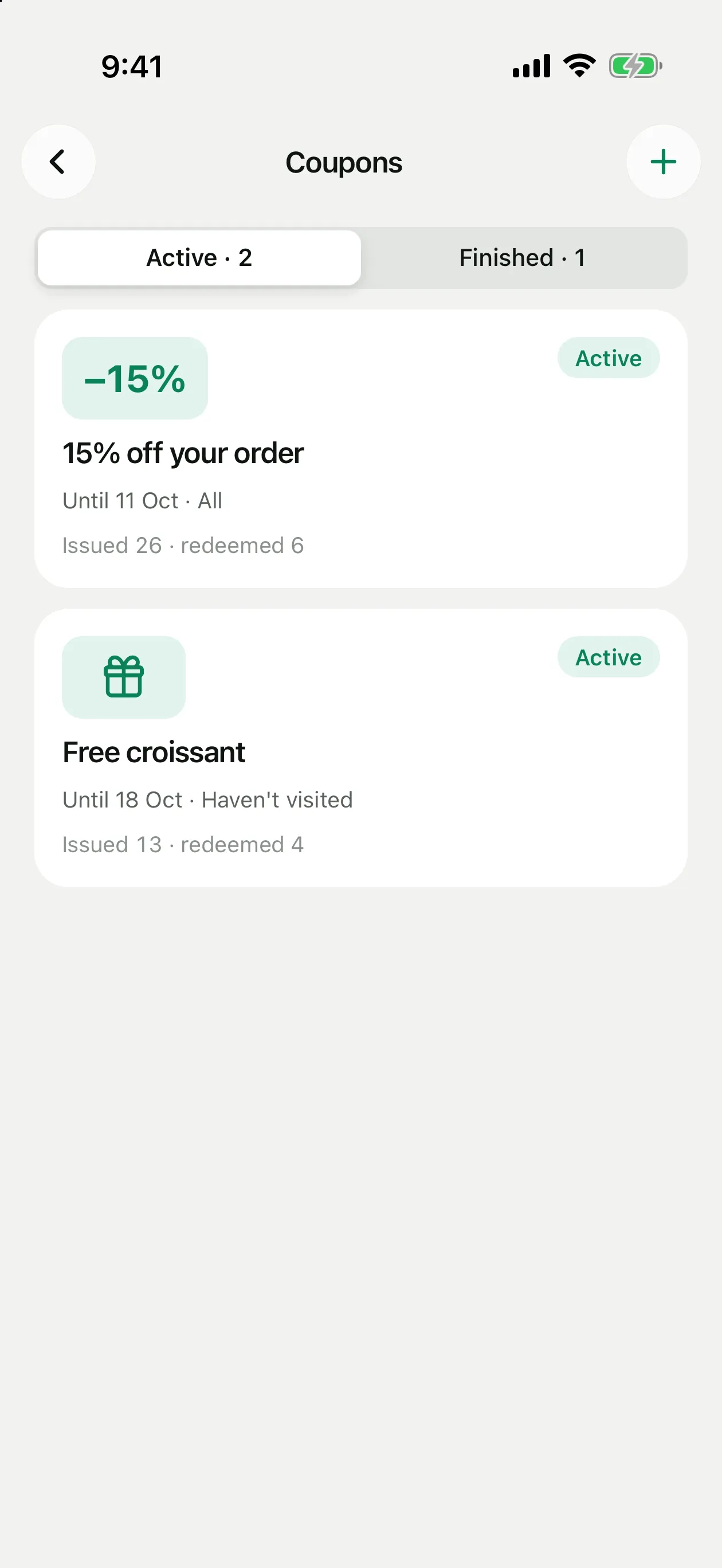
Coupons live next to campaigns: open Settings → Coupons or Campaigns → Coupons. The Active tab shows running coupons, Finished the expired and revoked ones, each with how many were issued and redeemed.
How to create a coupon
Open Coupons
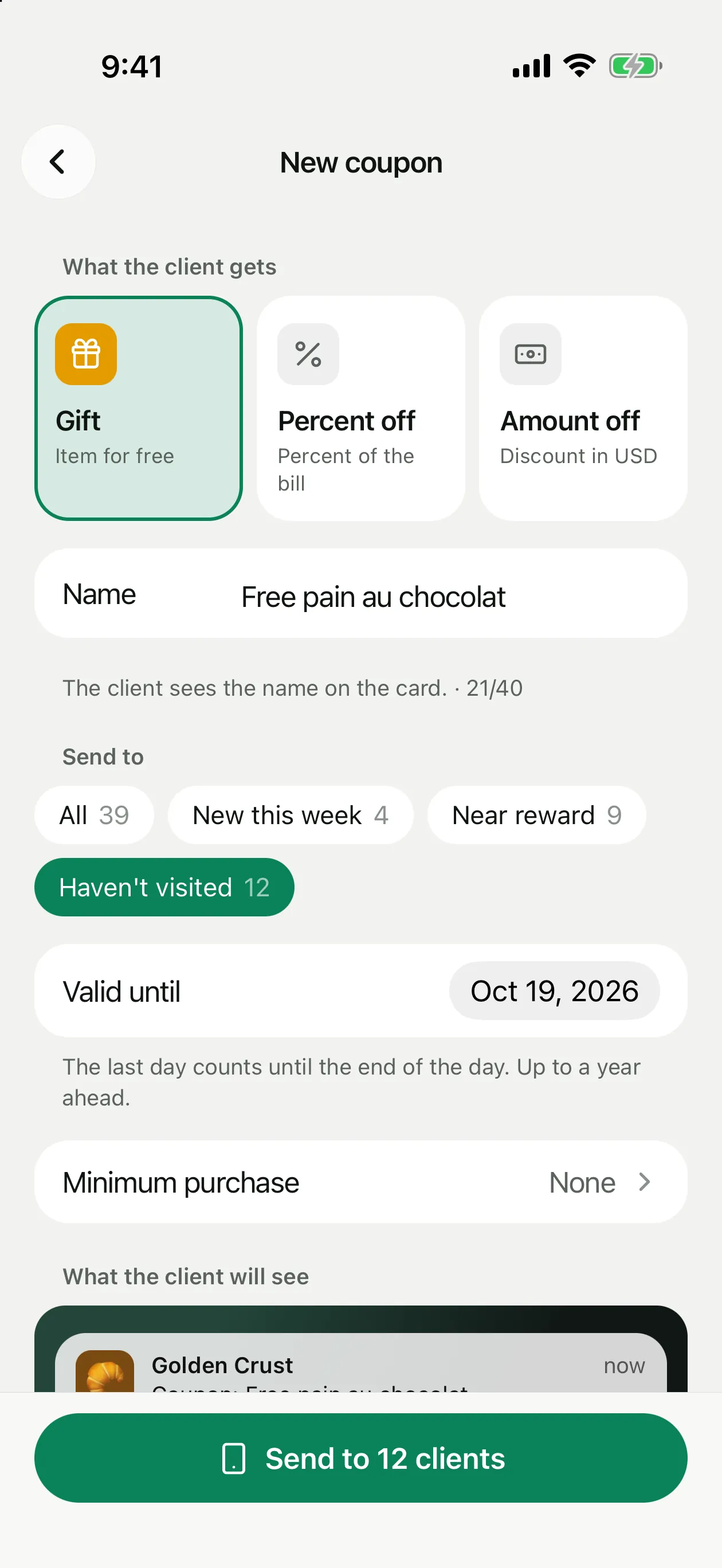
Settings → Coupons, then + in the top right corner.
Choose what the client gets
Gift: an item for free. Percent off: 1 to 100% of the bill. Amount off: a fixed sum in your currency.
Name the coupon
Up to 40 characters, for example “Free pain au chocolat”. Clients see this name on their card.
Choose who gets it
All, New this week, Near reward or Haven't visited. The number next to each group is how many clients will get the coupon.
Set the date and conditions
Valid until: any day from tomorrow up to a year ahead; the last day counts until the end of the day. Minimum purchase is optional: with it the coupon works only from that amount.
Check the preview and send
At the bottom of the screen you see the lock screen notification and the card as clients will. Tap Send to N clients and confirm.
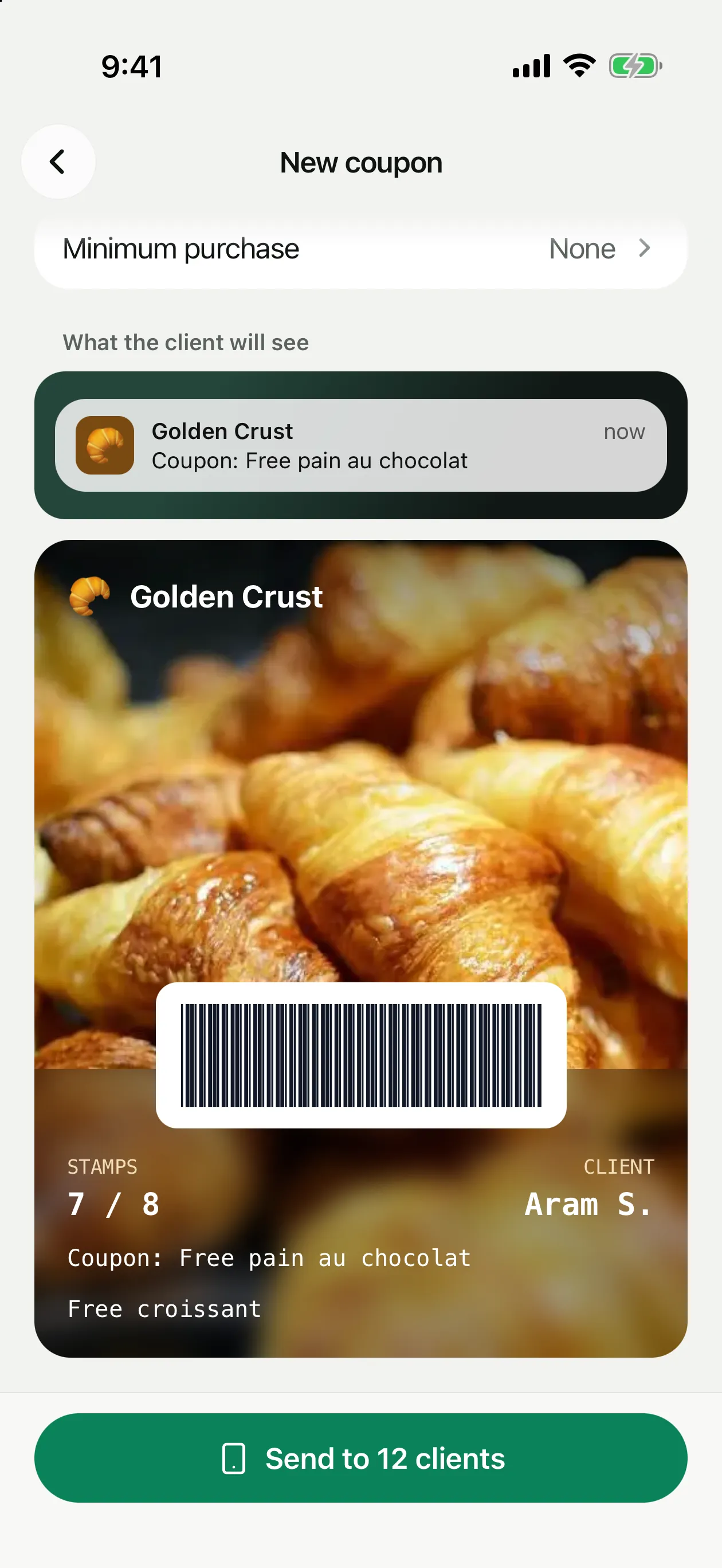
What the client sees
The client gets a lock screen notification from your business: “Coupon: Free pain au chocolat”. On the card in Wallet a coupon line appears under the balance and stays there until the coupon is used, expires or you revoke it.
The client doesn't need to show a code or a separate pass. At the counter the cashier scans the same barcode as always.
Redeeming at the counter
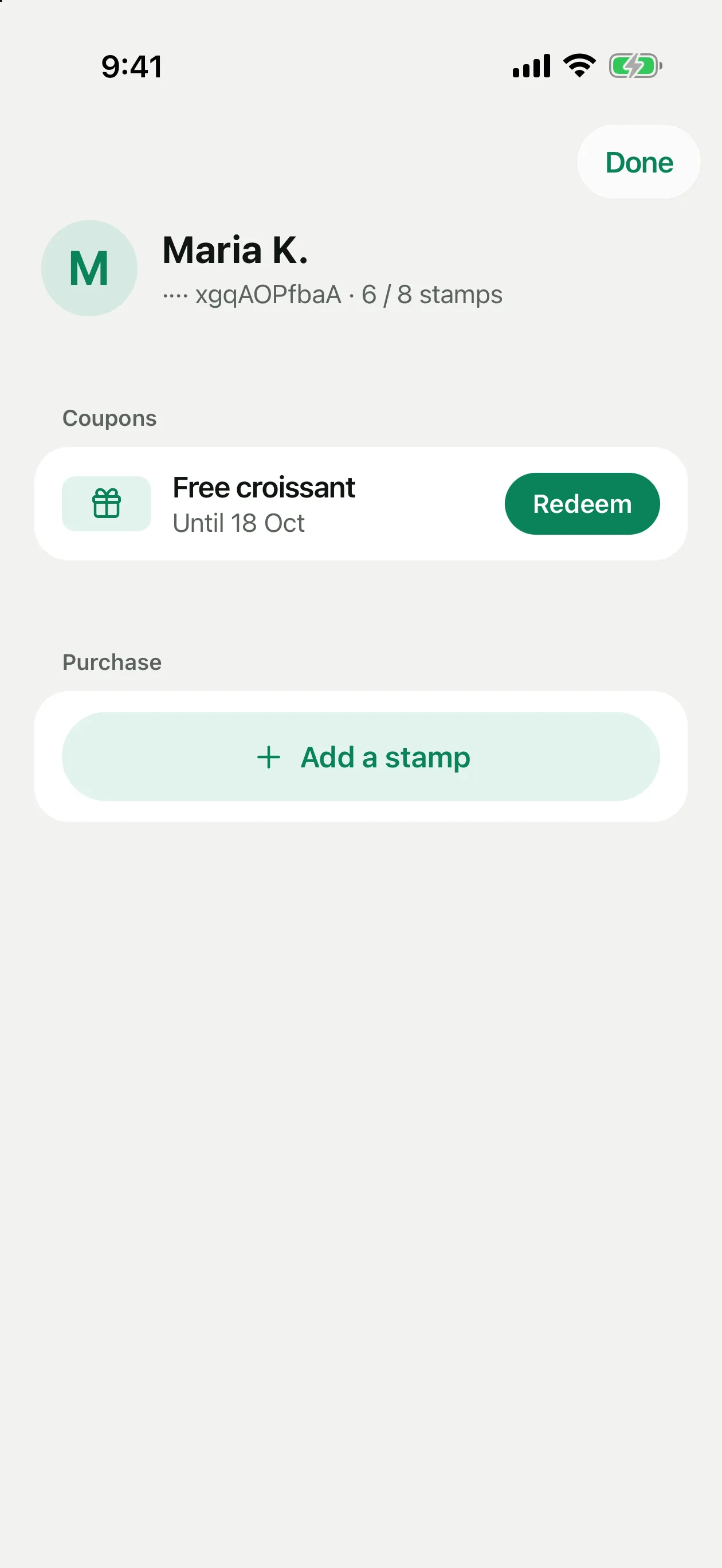
Scan the client's card
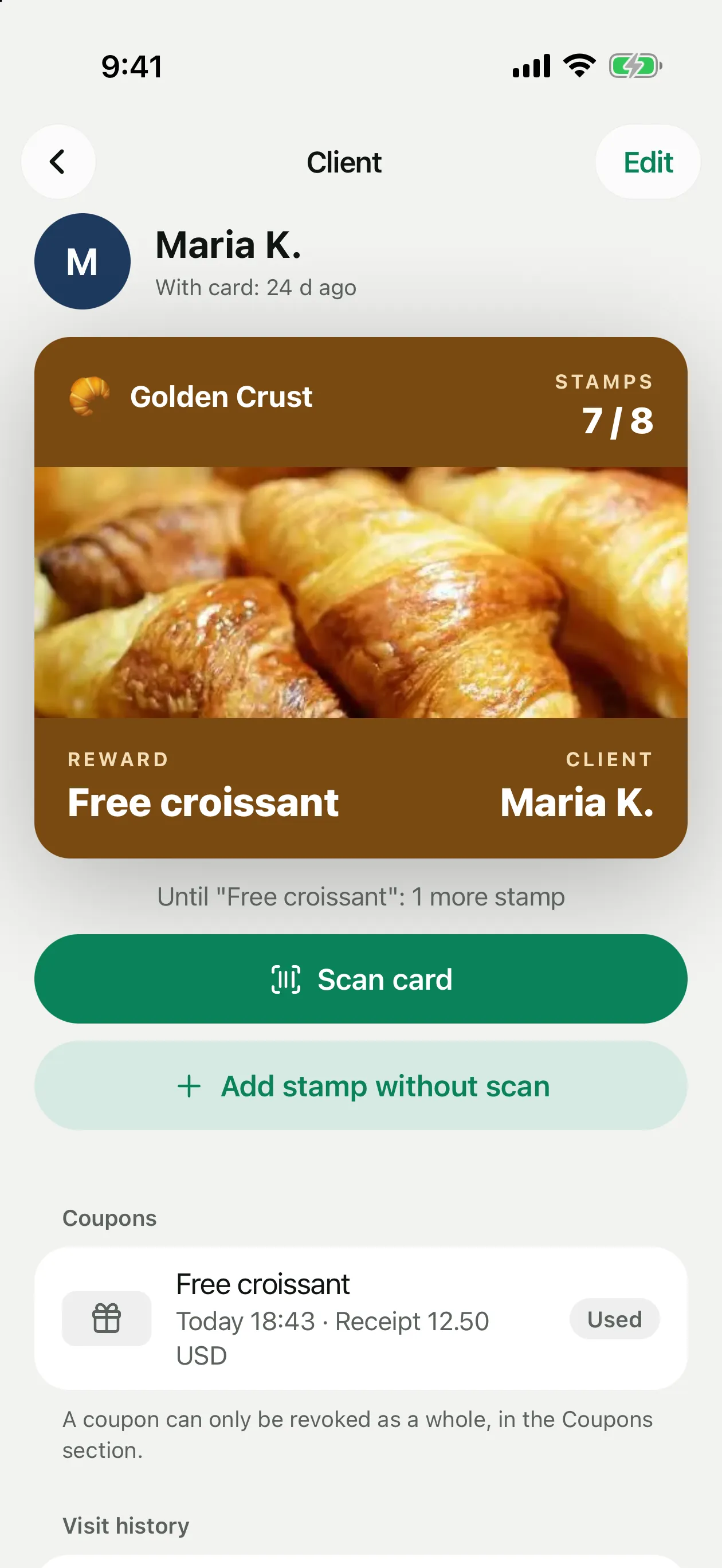
As usual: Scan client card on the Today screen. If the client has an active coupon, the client screen opens with the coupon and the usual purchase action.
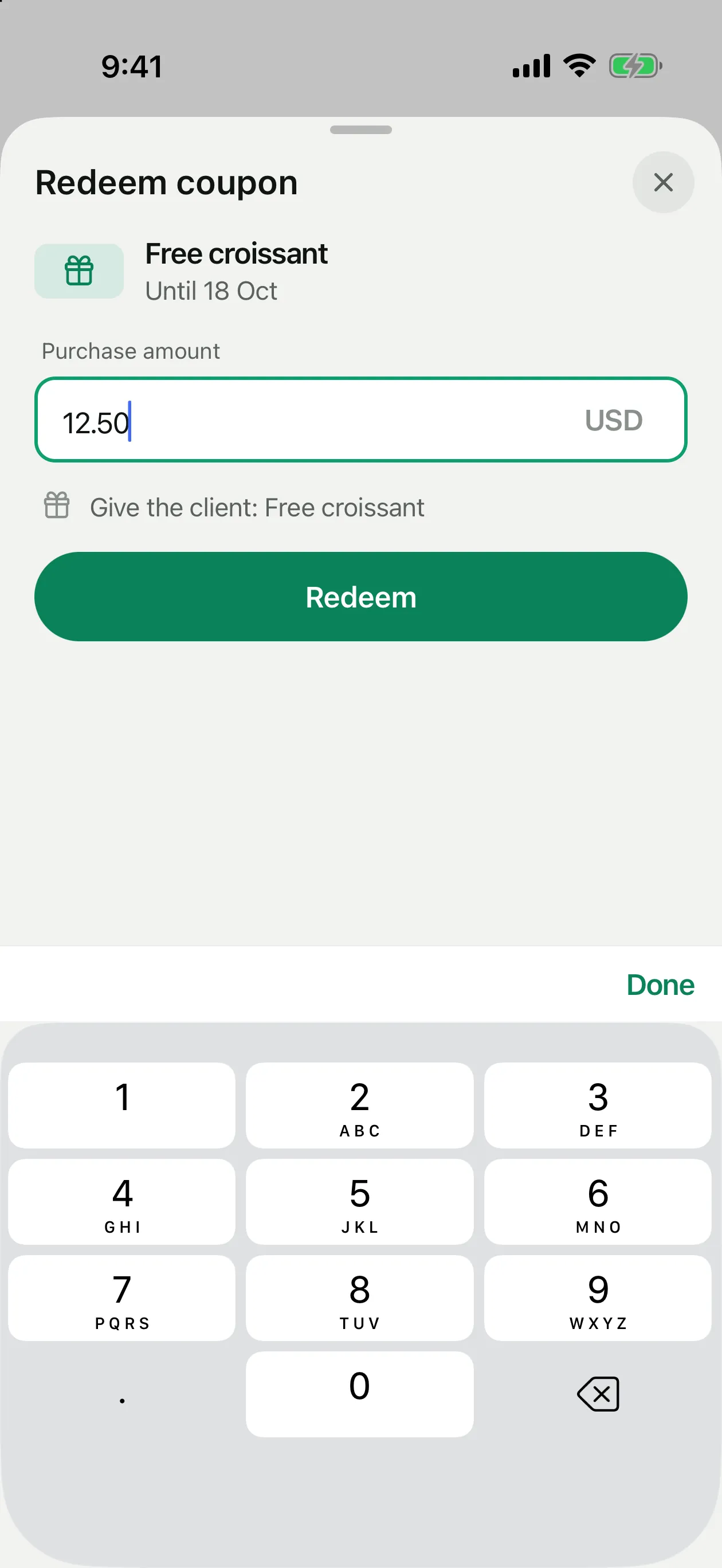
Tap Redeem
Enter the purchase amount. For a percent or amount coupon the app shows the discount and what is left to pay; for a gift it reminds you what to give.
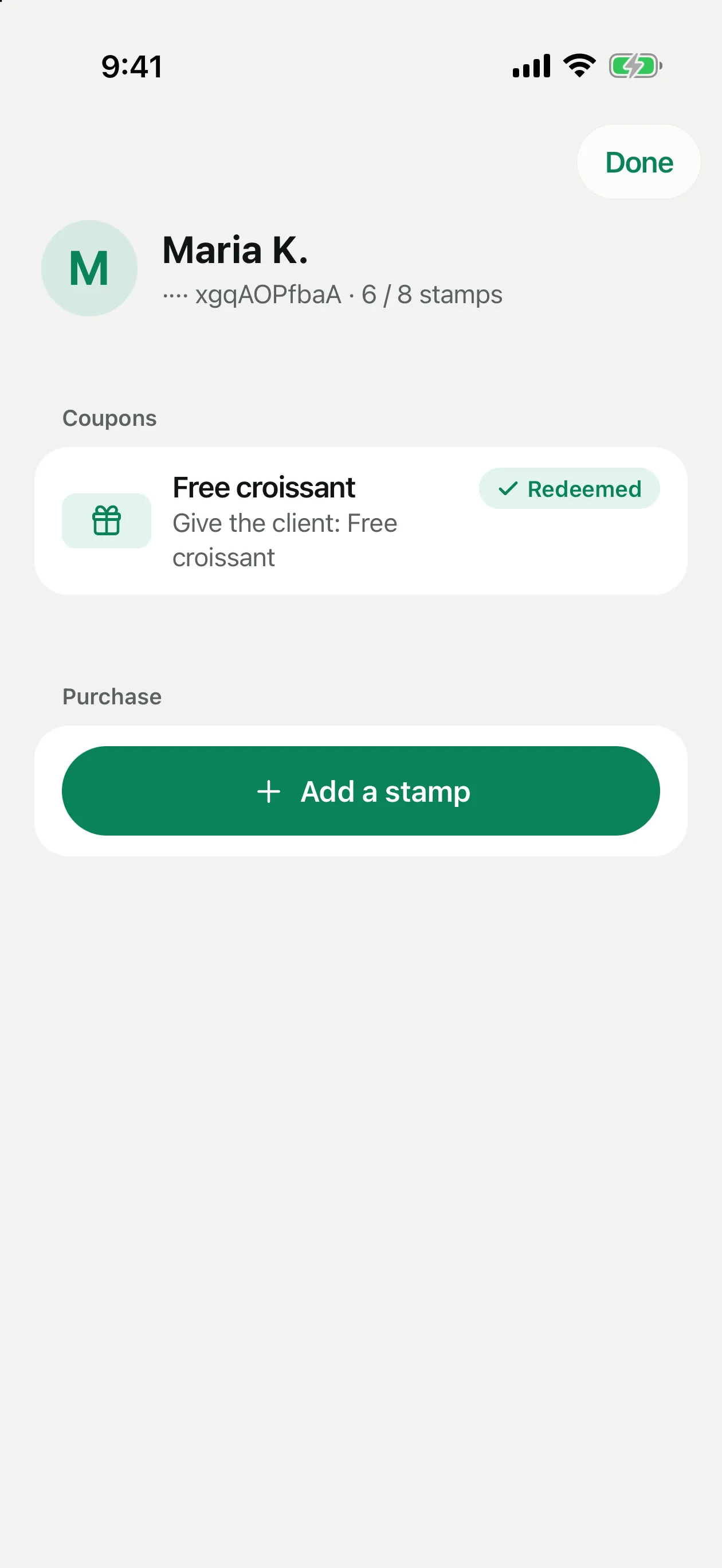
Add the stamp and finish
The client screen stays open: add the stamp (points or cashback) for the same purchase and tap Done.
Cashiers and coupons
By default cashiers can't redeem coupons. To allow it, open Staff, tap the cashier and turn on Redeem coupons in the Coupons section. The cashier enters the receipt amount, and you get a notification for every redemption.
More about permissions: Team & Cashiers.
Results and revoking
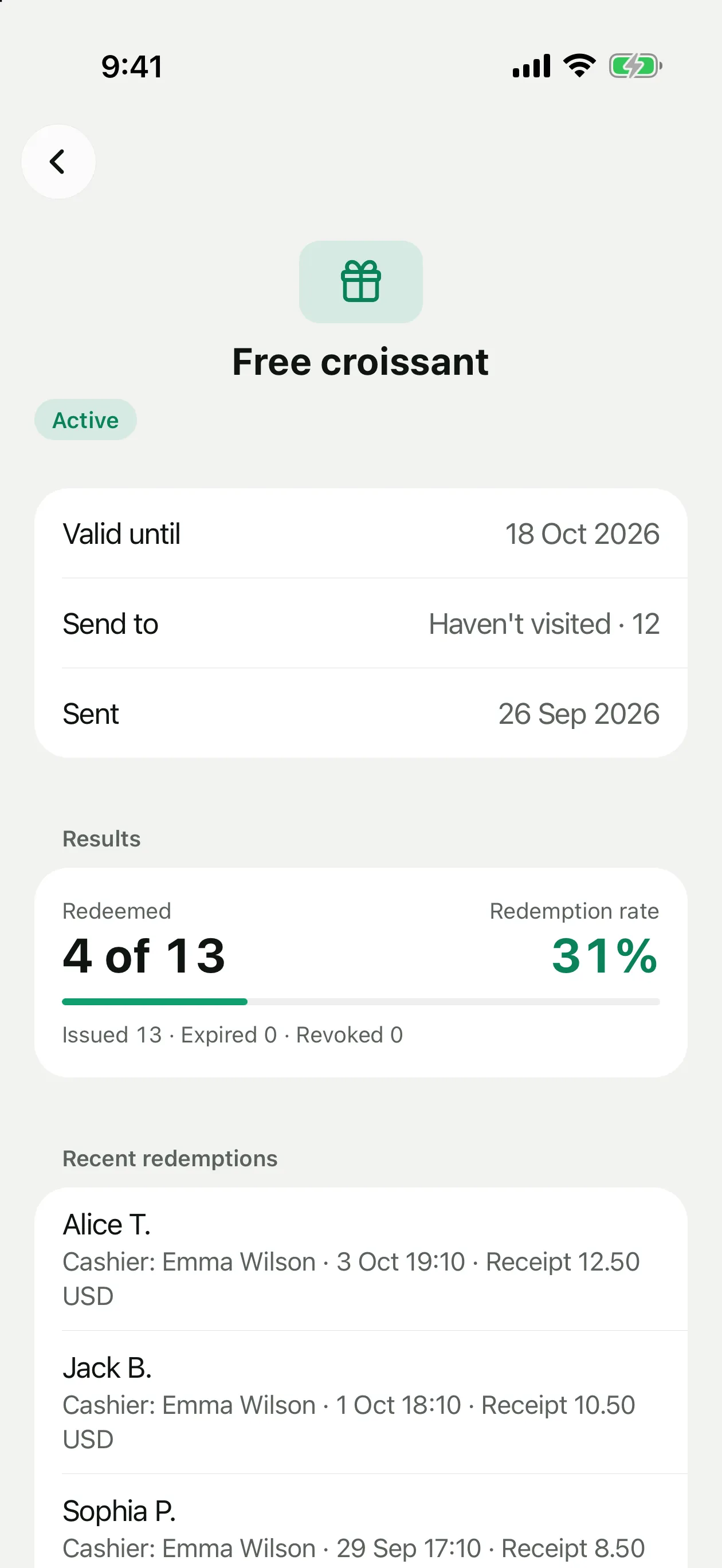
Tap a coupon in the list to see its validity, who it went to, the send date, how many of the issued coupons were redeemed and the redemption rate. Recent redemptions shows the client, the cashier, the time and the receipt amount.
Revoke coupon at the bottom of the screen removes it from the cards of clients who haven't used it yet. Redeemed coupons stay in history. This can't be undone.
A client's own coupons are listed in their card: Clients → the client → Coupons.