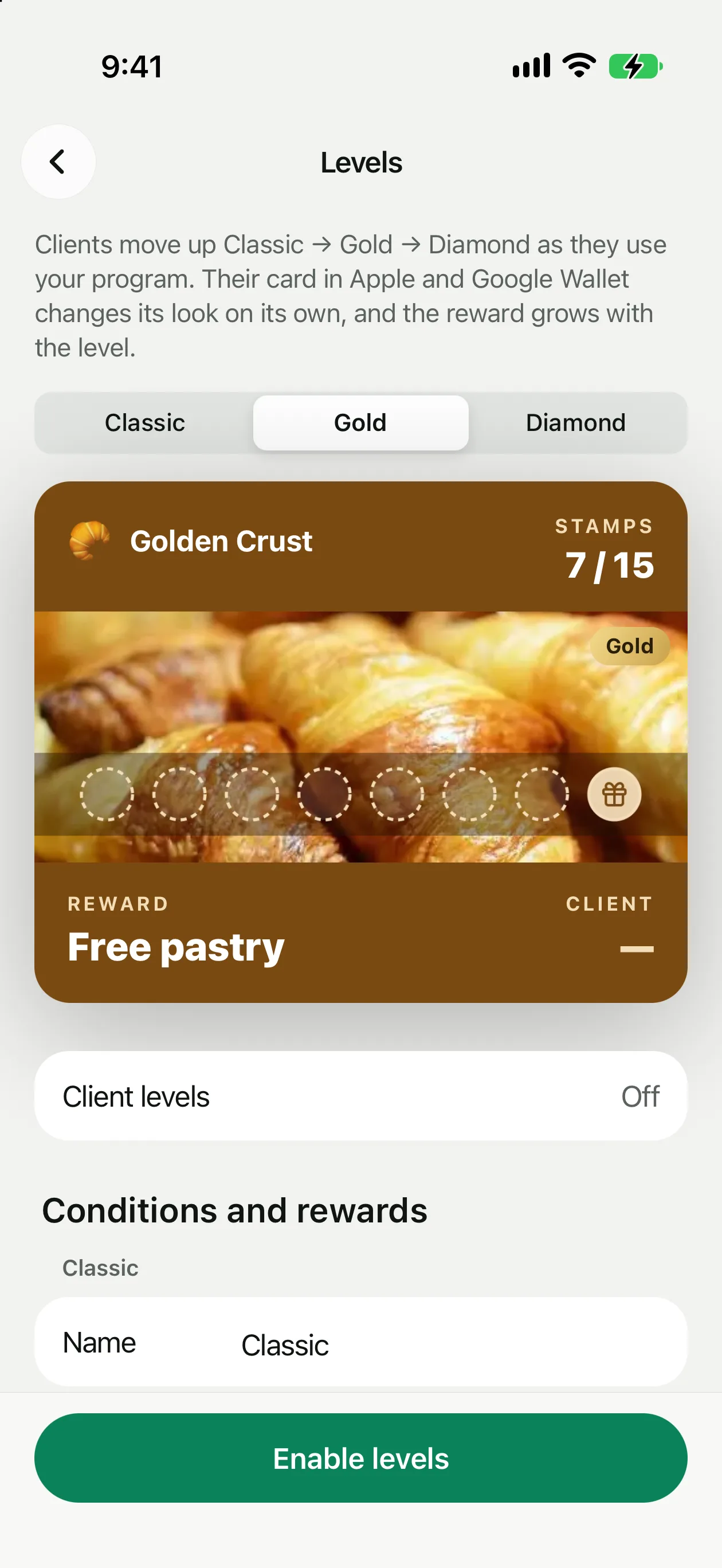
Your program has three levels: Classic, Gold and Diamond. A client moves up on their own when they meet your condition, and their Wallet card changes its look while the reward grows.
The screenshots show the app in English.
How it works
Every client starts at Classic. When they meet the condition for the next level, their card in Apple Wallet and Google Wallet changes its look on its own (a badge on the banner, or colors), and they get the reward of the new level.
✓There are always three levels; you can't add or remove any.
✓You can rename them: up to 20 characters, all three different. The defaults are Classic, Gold and Diamond in every language.
✓You set the condition and the reward for each level.
✓The level name isn't written on the front of the card: the level shows in the badge or the color. The list of levels and progress to the next one are on the back of the card in Apple Wallet and in the details in Google Wallet.
Levels stay off until you switch them on: Settings → Levels. Before you do, the screen shows what will change for your clients.
Conditions and rewards
The condition is counted in your program's own units. Gold and Diamond are set separately:
✓Stamps: completed rounds. By default Gold after 1 round and Diamond after 5. A round counts when the main reward is handed over; in-between steps don't count.
✓Points: all points earned over time; spending them doesn't lower the count. By default Gold after 500 and Diamond after 2000.
✓Discount: visits. By default Gold after 10 and Diamond after 30.
✓Cashback: total purchases over time, in your currency. There are no defaults, so enter them yourself. Levels can't be switched on without them.
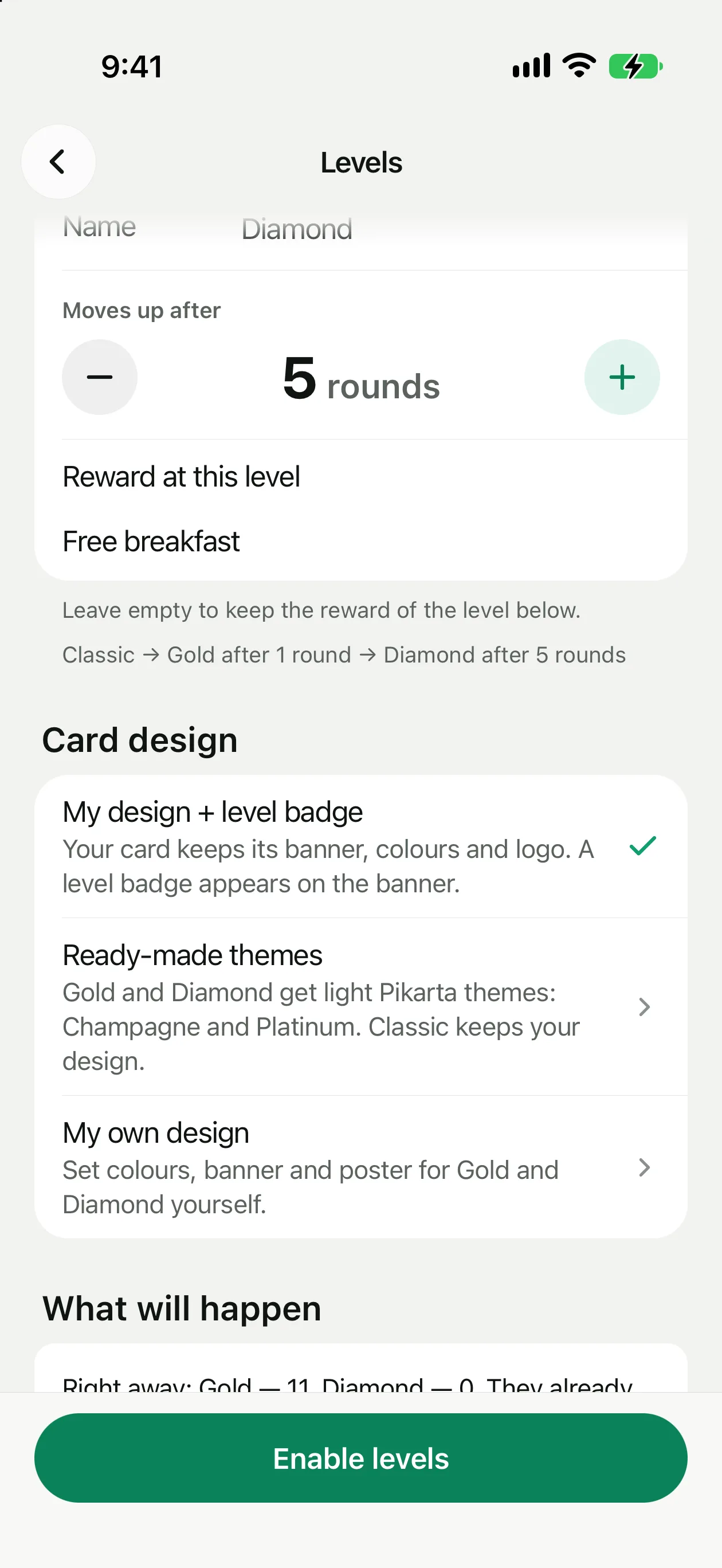
Gold and Diamond can have their own reward. With stamps and points that's the reward name, with cashback the cashback percent, with a discount the discount percent. An empty field means the same as the level below. The round length and the in-between steps stay shared.
Settings → Levels: conditions and rewards
How the card looks
The Card design block has three options:
✓My design + level badge (the default). The card keeps your banner, colors and logo, and a badge appears on the banner: gold for Gold, graphite with an icy outline for Diamond. Classic has no badge. The badge never covers stamp places.
✓Ready-made themes. Gold gets the light theme Champagne, Diamond gets Platinum. Classic keeps your design.
✓My own design. You set the colors, banner and poster for Gold and Diamond yourself: Customize Gold and Customize Diamond. The logo, stamps and layout come from your card. If the text is hard to read on the background you chose, the app warns you. You can keep the badge on top of your own design with Level badge on the banner.
The badge is drawn on the banner. With no banner, Gold and Diamond take the colors of the ready-made themes. You can add a banner in Settings → Card design.
In Google Wallet the card's background color is the same for every level, so the level shows in the banner picture there.
Three ways to design the levels
How to switch levels on
1
Open Settings → Levels
The row sits under the loyalty program.
2
Set conditions and rewards
For each level: a name, a condition and a reward. A summary line at the bottom reads, for example, “Classic → Gold after 1 round → Diamond after 5 rounds”.
3
Choose the card design
One of the three options above.
4
See what will happen
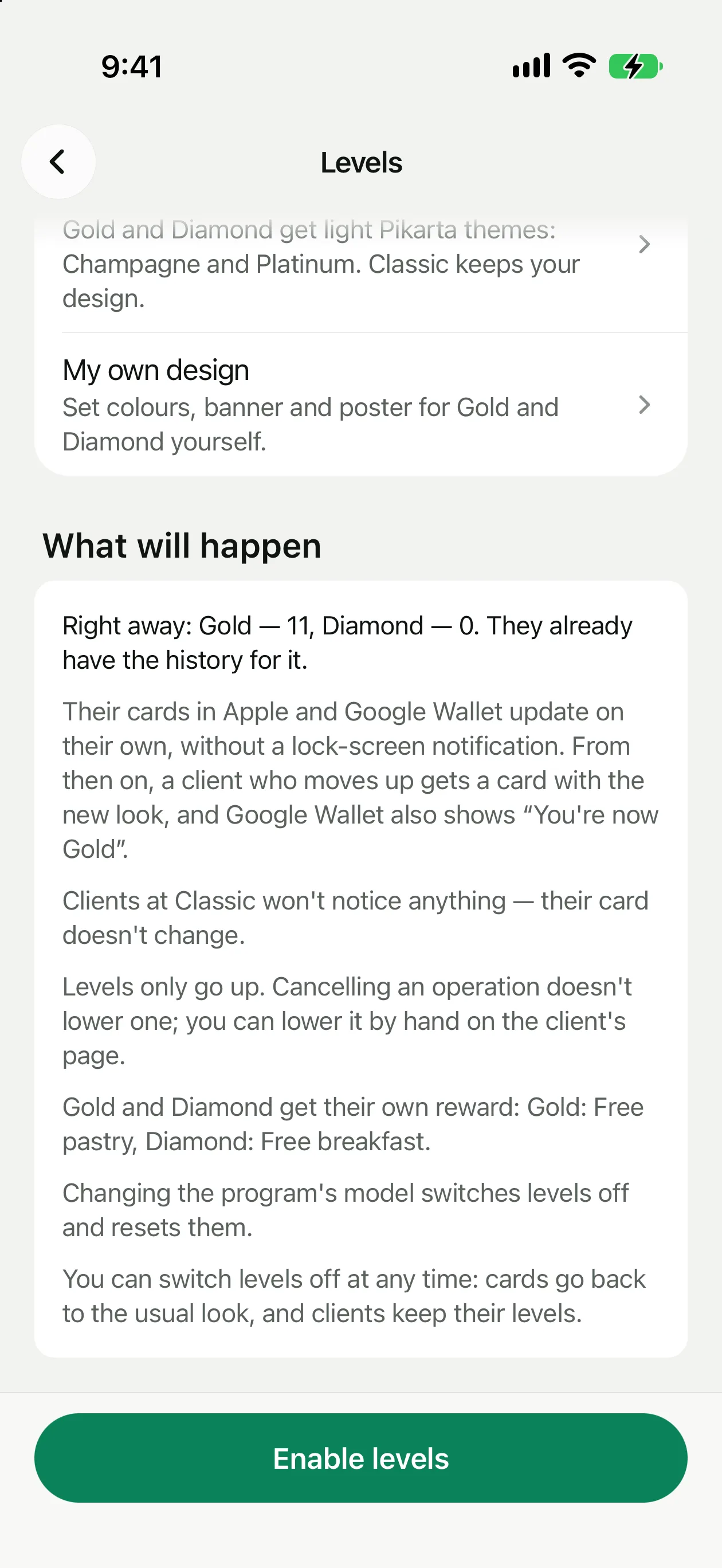
The What will happen block counts, across your base, how many clients become Gold and Diamond right away because they already have the history.
5
Tap Enable levels
Confirm. The cards of clients who moved up update on their own, with no lock screen notification.
Once levels are on, the same screen edits conditions, rewards and design. Save shows how many cards will update. Disable levels returns cards to their usual look; clients keep their levels, and they come back if you enable levels again.
What will happen, and the Enable levels button
How clients move up
✓A level only goes up. Cancelling an operation doesn't lower it, and raising a threshold in settings doesn't take away levels clients already have.
✓If a client skips a level, for example with one big purchase, they get the highest one right away.
✓You see the promotion on the scan screen: “Moved up to Gold!”.
✓In Google Wallet the client gets a message about the new level. In Apple Wallet the card just changes its look, with no lock screen notification.
✓If you change the program's model, levels switch off and reset.
Level on the client page
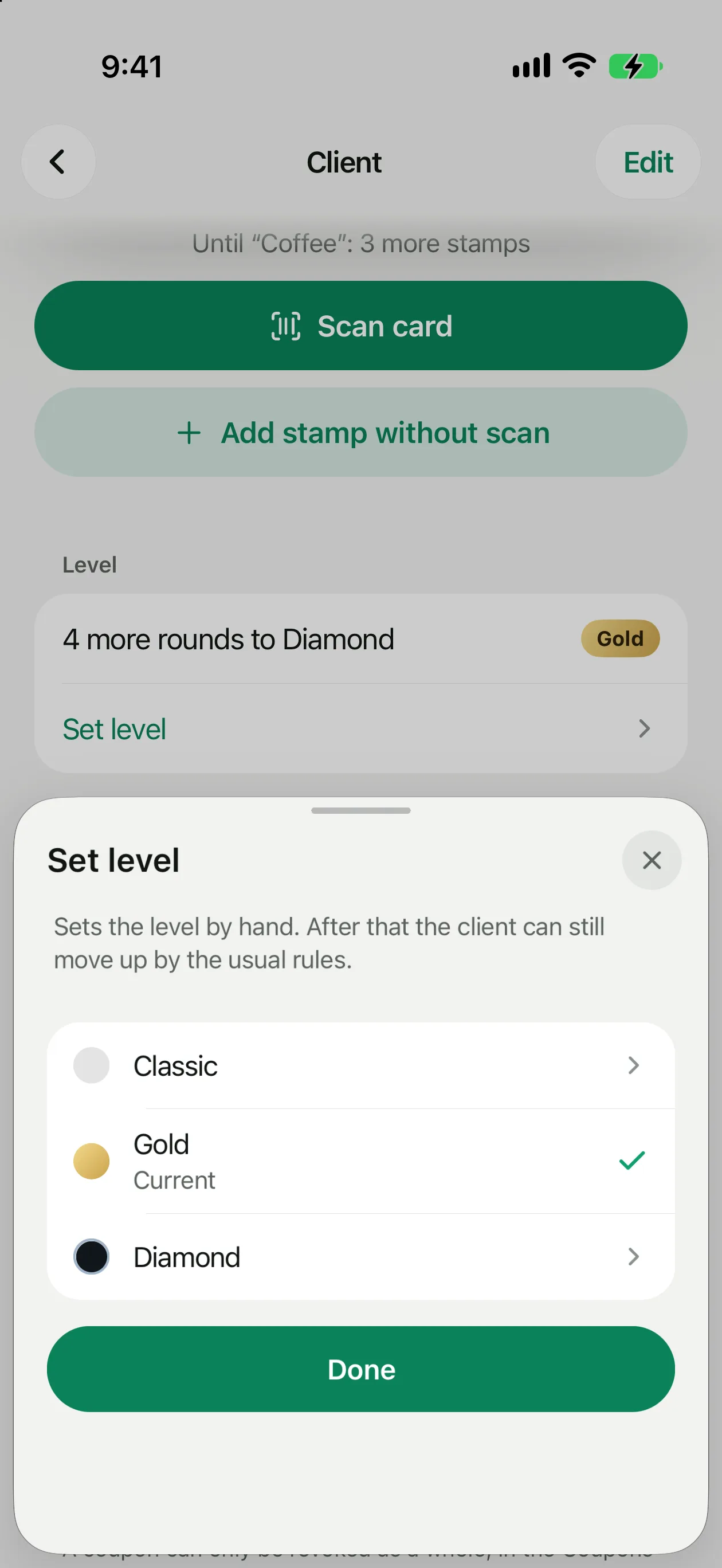
The client page has a Level block: the badge and what is left to the next one, for example “3 more rounds to Diamond”. Set level opens a choice of the three levels. Use it to make a regular guest Diamond right away or to fix a mistake. Lowering a level asks you to confirm.
A level set by hand then follows the usual rules: the client can still move higher. If you lower a level, the client's counter drops to the start of the chosen level, so the next purchase doesn't send them back up.
In the Clients list, Gold and Diamond have a badge, and the filters include level chips. The history marks a promotion: “New level: Gold”.
Want an offer for Gold only? Filter clients by level, select them, tap Move to… and send the offer to that group. Groups by level aren't created automatically.