
At the counter
Everything that happens at the till: scan the card, add a stamp, points or cashback, give the reward, add a purchase without a scan, undo a mistake and keep working without internet.
The screenshots show the app in English.
Scan the card
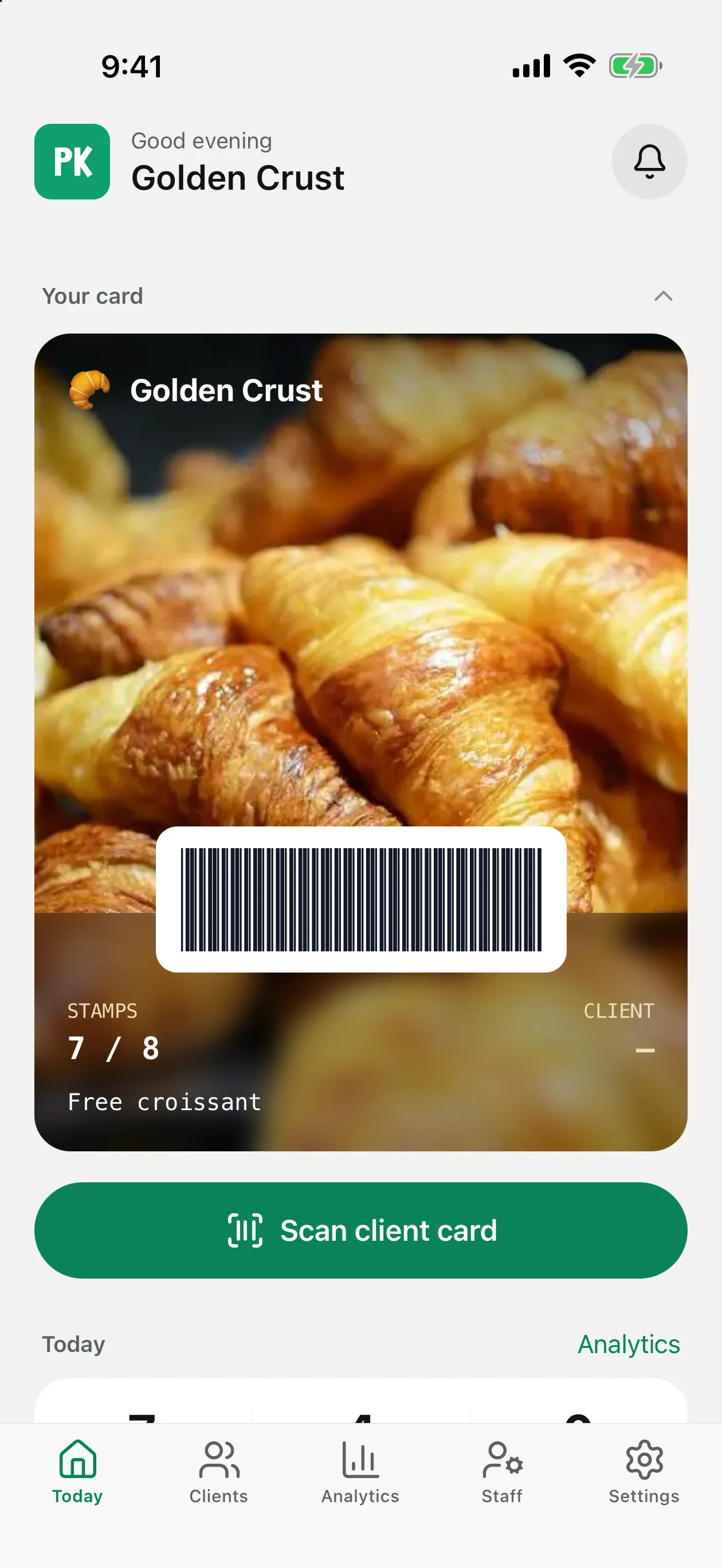
On the Today screen tap Scan client card and point the camera at the barcode on the client's Wallet card. Cashiers have the same button on their own home screen, and the Home Screen widget opens the scanner in one tap.
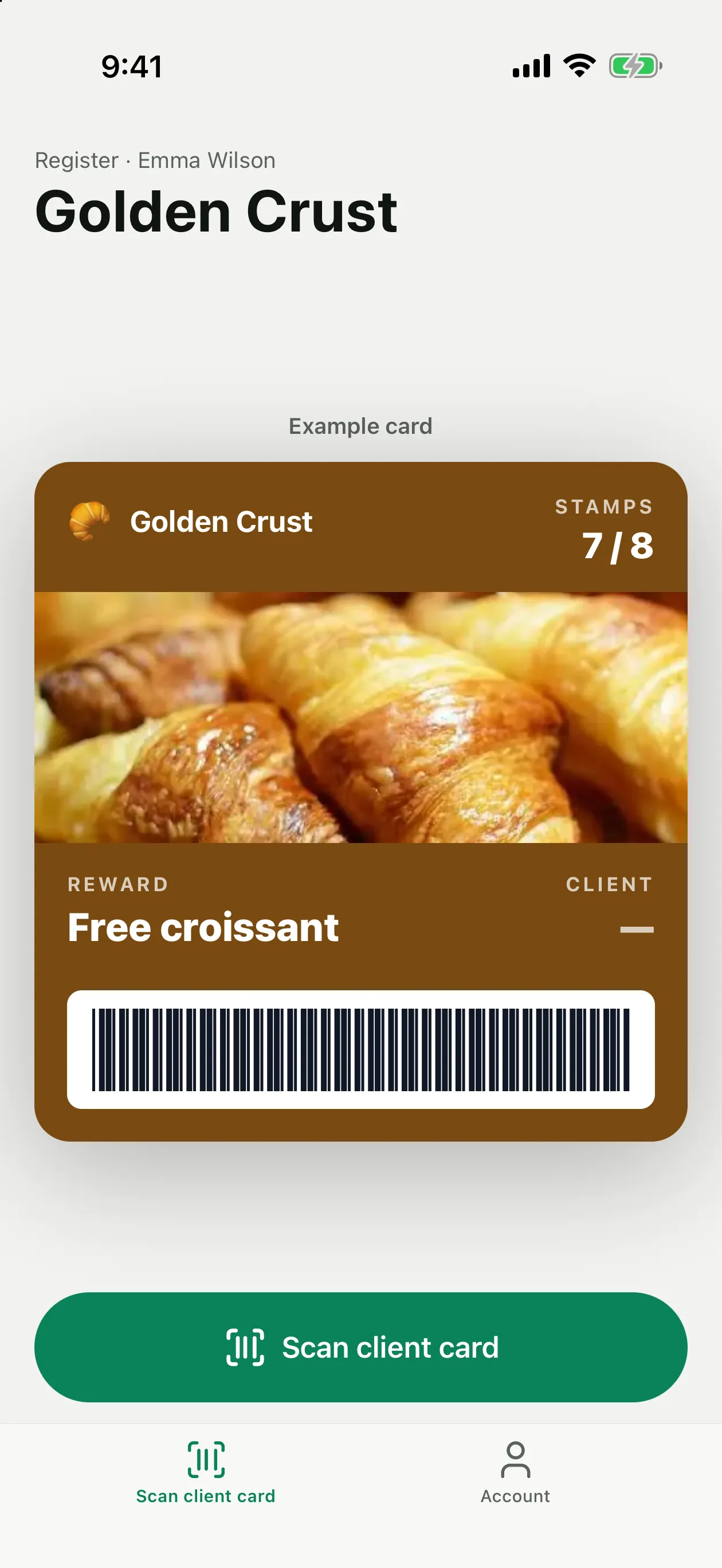
Stamps
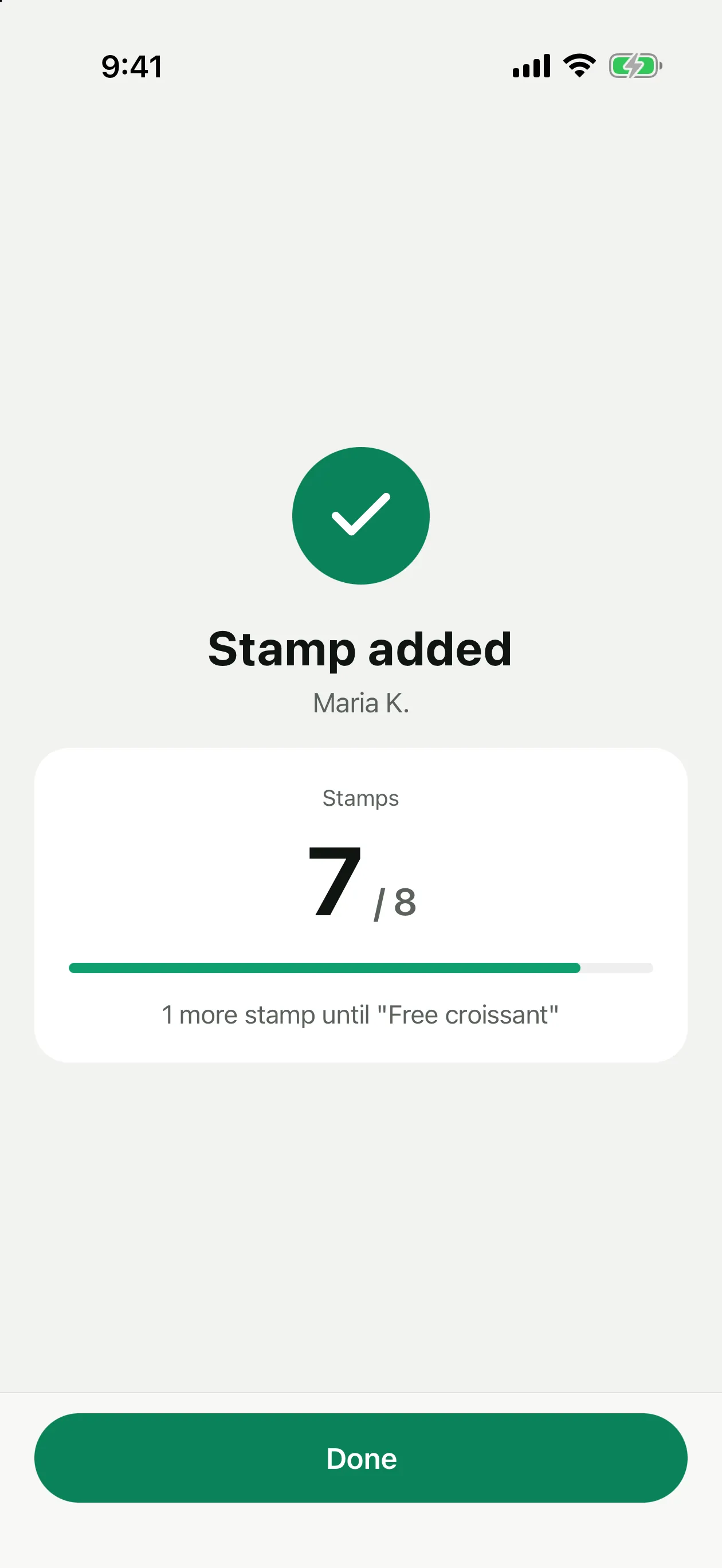
The stamp is added right after the scan. The result screen shows the client's stamps and how many are left until the reward. Tap Done to return.
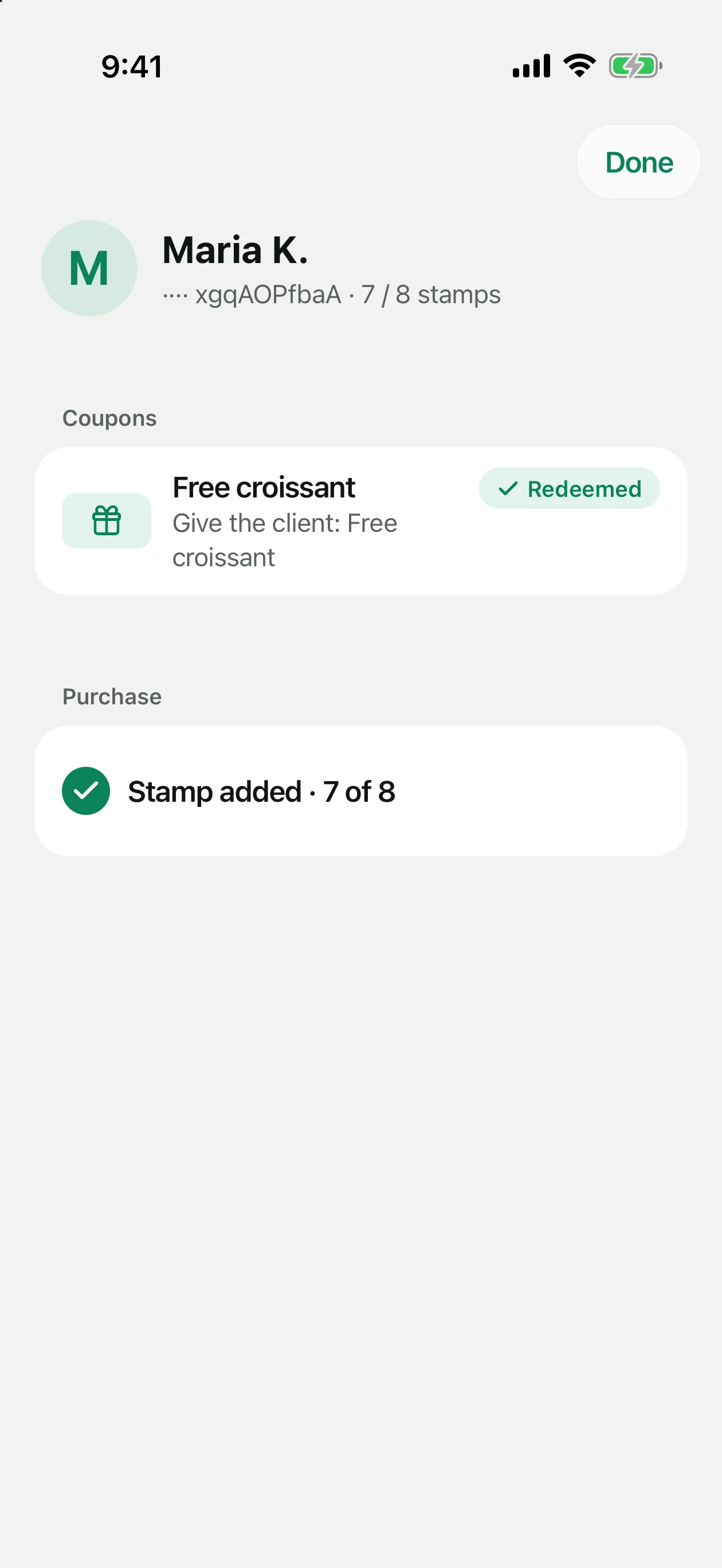
If the client has an active coupon, the client screen opens first: redeem the coupon there and add the stamp with Add a stamp for the same purchase.
Giving a reward
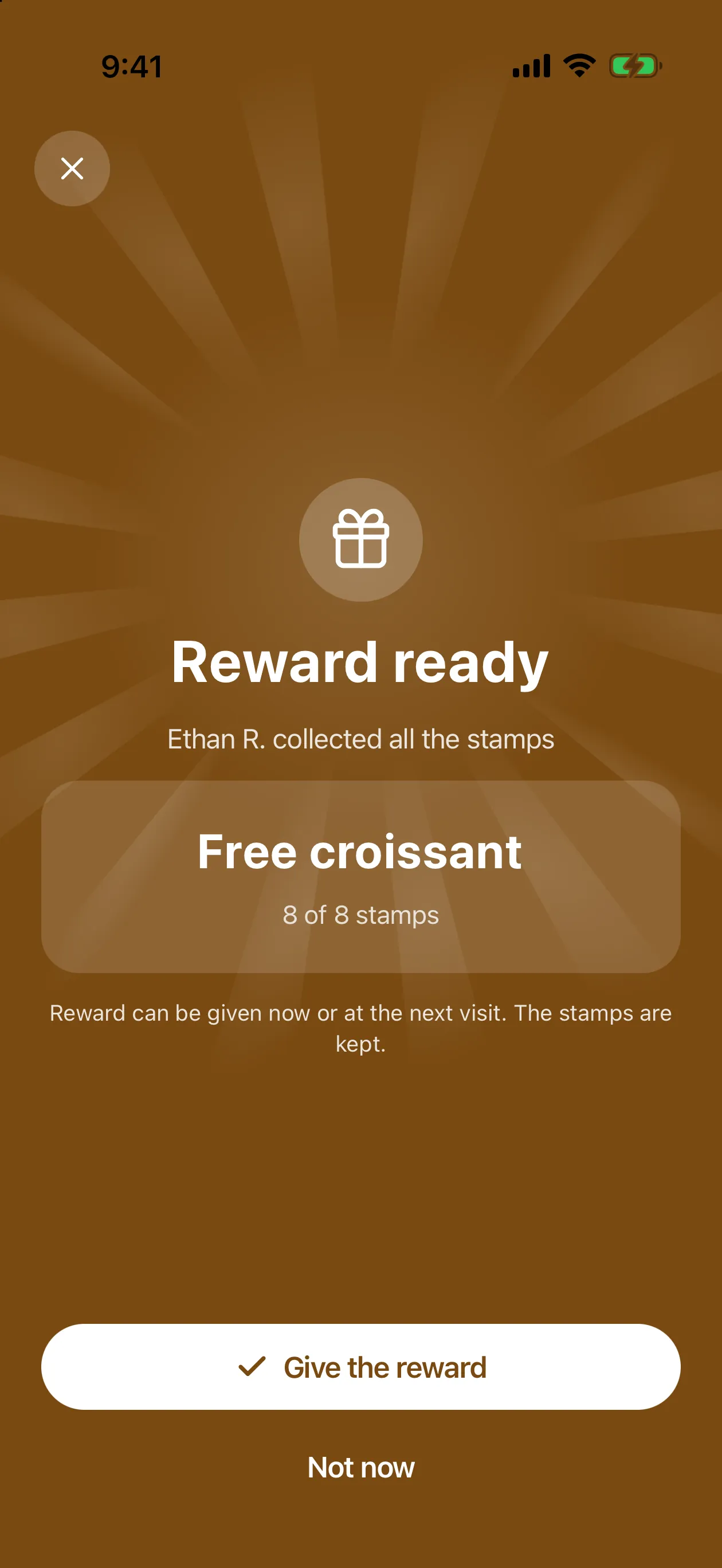
When the stamp that completes the card is added, the Reward ready screen opens.
A waiting reward can also be given from the client card: Clients → the client → Give reward. With points the reward is ready once the client has enough points; the points are taken off when you give it.
Points and cashback
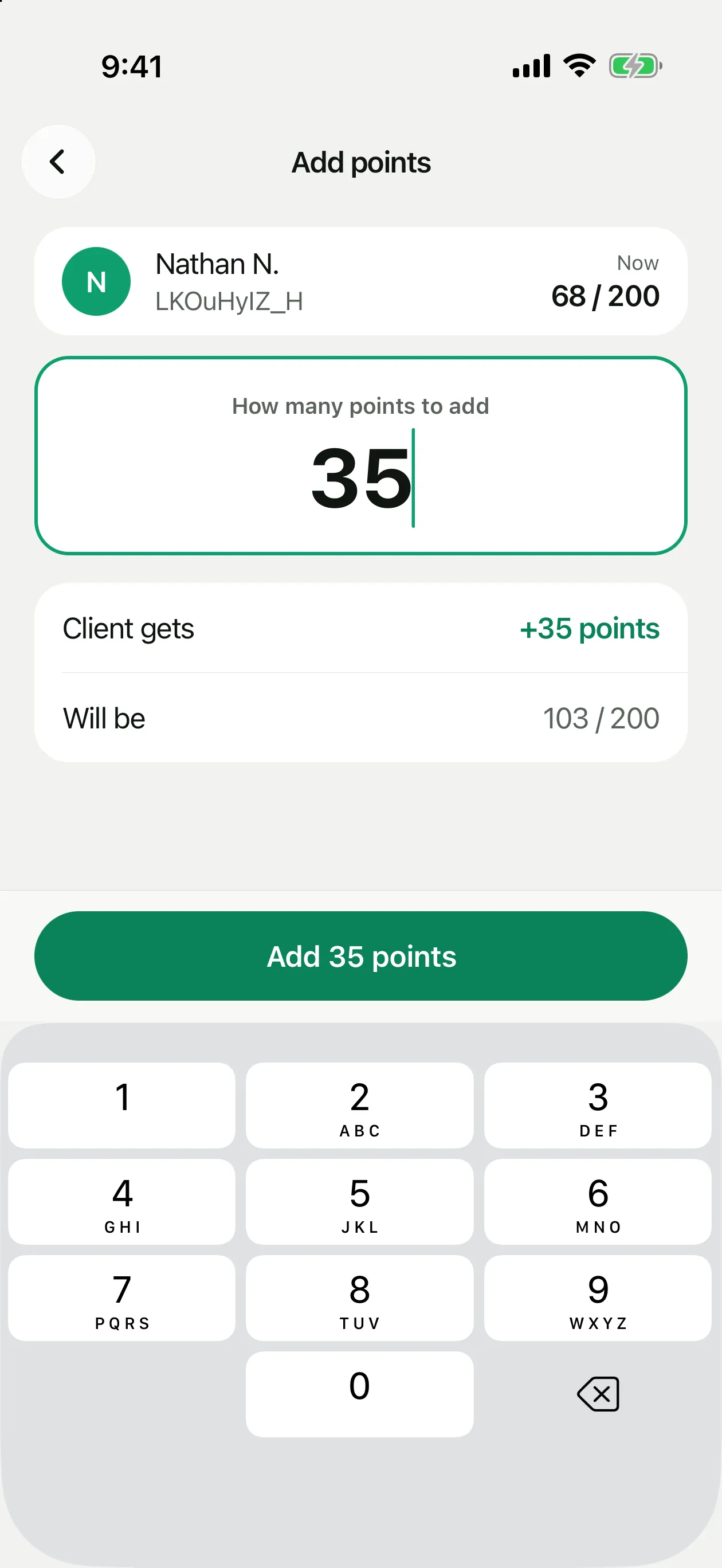
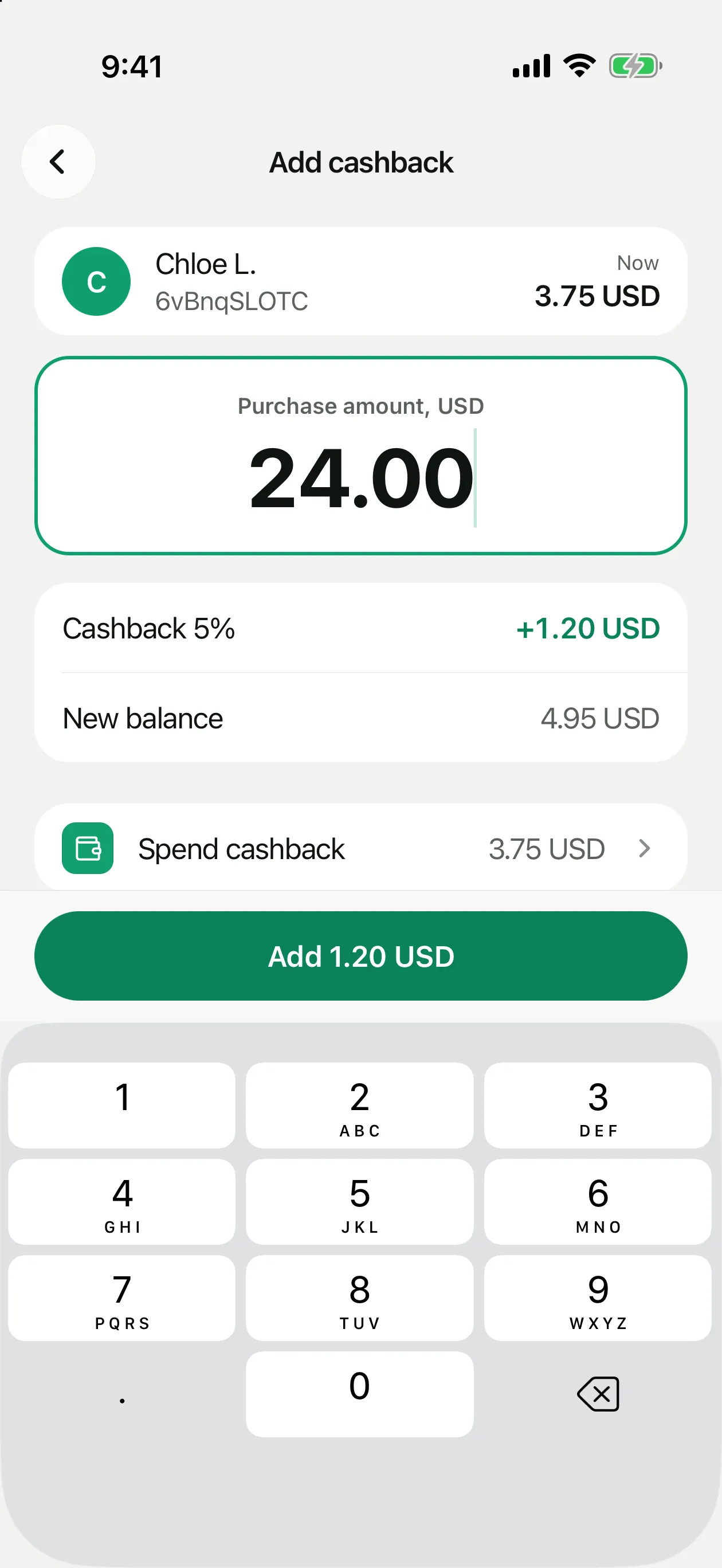
With points or cashback the scan opens an entry screen with the client's current balance.
Without a scan
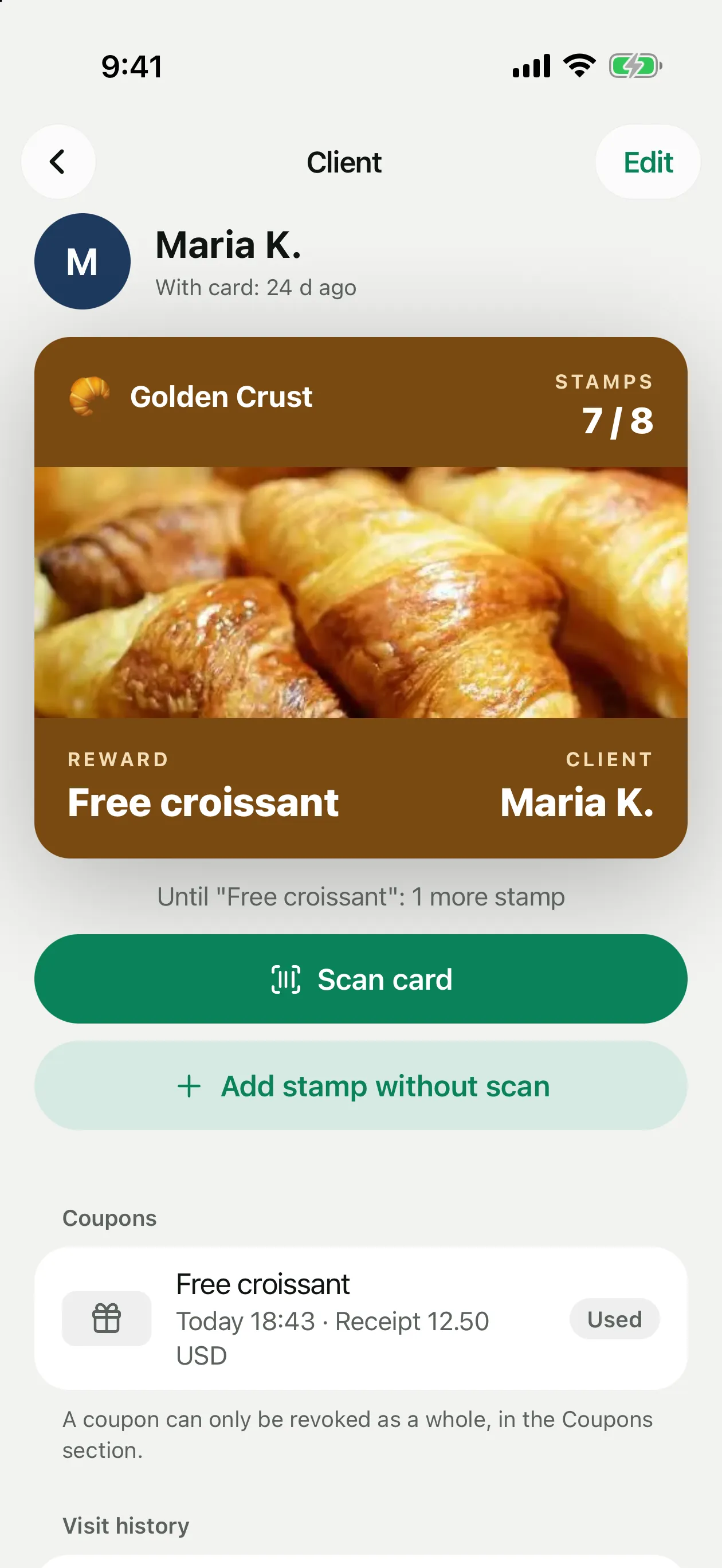
The client forgot their phone, or the camera can't read the code? Open Clients, find the client by name or phone and tap Add stamp without scan. With other programs the button is Add points without scan or Add cashback without scan. The result is the same as with a scan.
Undoing a mistake
Open the client card
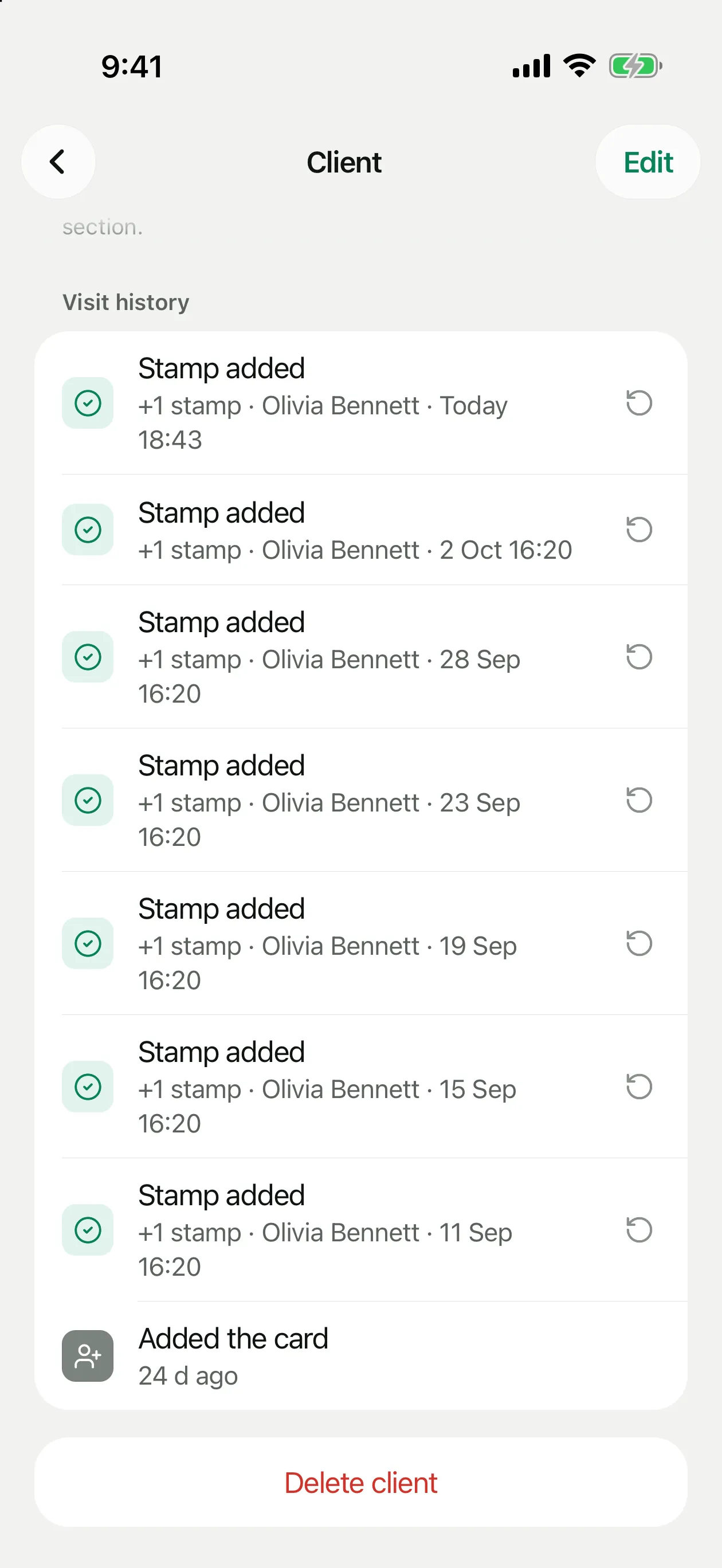
Clients → the client, then scroll to Visit history.
Tap the undo arrow next to the entry
It is there for added stamps, points and cashback.
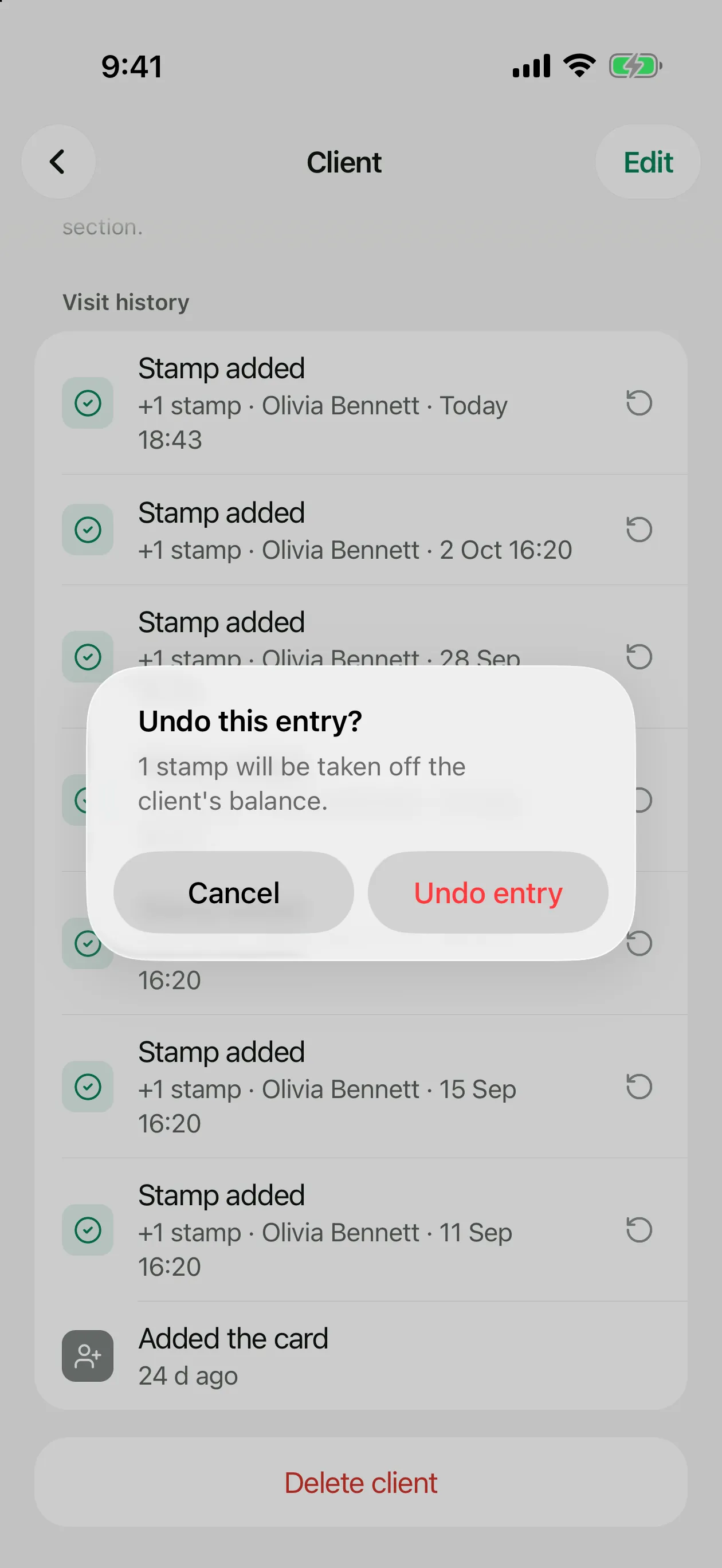
Confirm
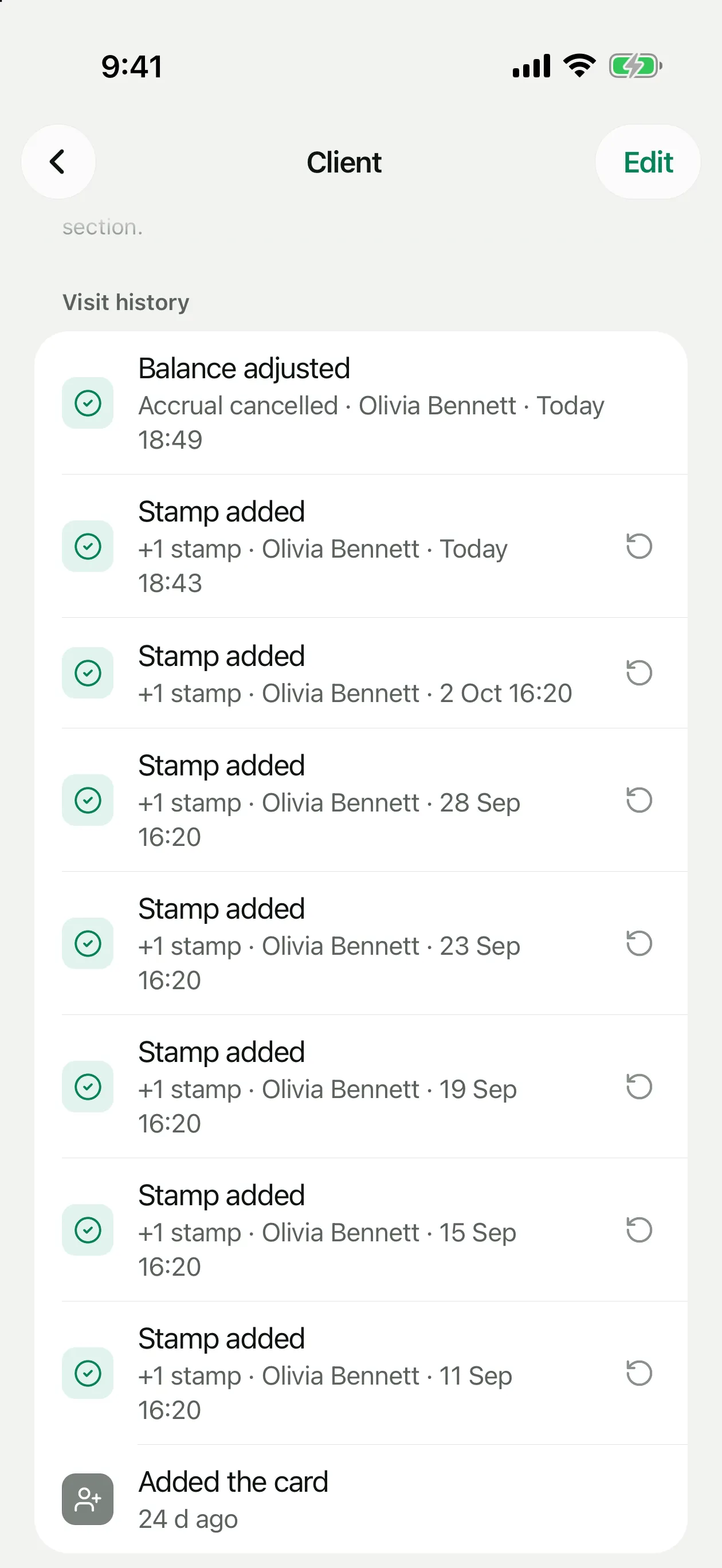
Undo entry: the amount is taken off the client's balance, and the history gets a “Balance adjusted · Accrual cancelled” row.
Without internet
If the connection drops, keep scanning. The stamp, points, cashback or visit is saved on the phone (“Saved, syncing later”) and goes out the moment you're back online. While something is waiting, the app shows “Offline · N waiting to send”.