
Apple & Google Wallet
How customers add your loyalty card to Wallet and what they see after each visit.
How a customer gets the card
Scans the QR code
You show the QR code from the app (or place it at the register/table). The customer scans it with their standard camera.
Taps "Add to Wallet"
A page with a card preview opens. One tap — the card is saved to Apple Wallet or Google Wallet.
Card always at hand
No more paper cards. The customer opens Wallet and shows the barcode to you or the cashier.
What the customer sees in Wallet
The loyalty card in Wallet shows all key information on one screen:
The card appearance is the same in both Apple Wallet and Google Wallet — respecting the visual standards of each platform.
Card updates
The card in the customer's Wallet updates automatically in two cases:
The customer receives a push notification on their lock screen every time the card is updated. This reminds them of your business without any extra effort on your part.
Card near your location
Customers with your card in Apple Wallet will see it on their lock screen when they're near your business — a subtle, automatic reminder to stop by.
Configure it in the app: Settings → Business address → "I'm at the business right now" — this captures the coordinates the card will surface near.
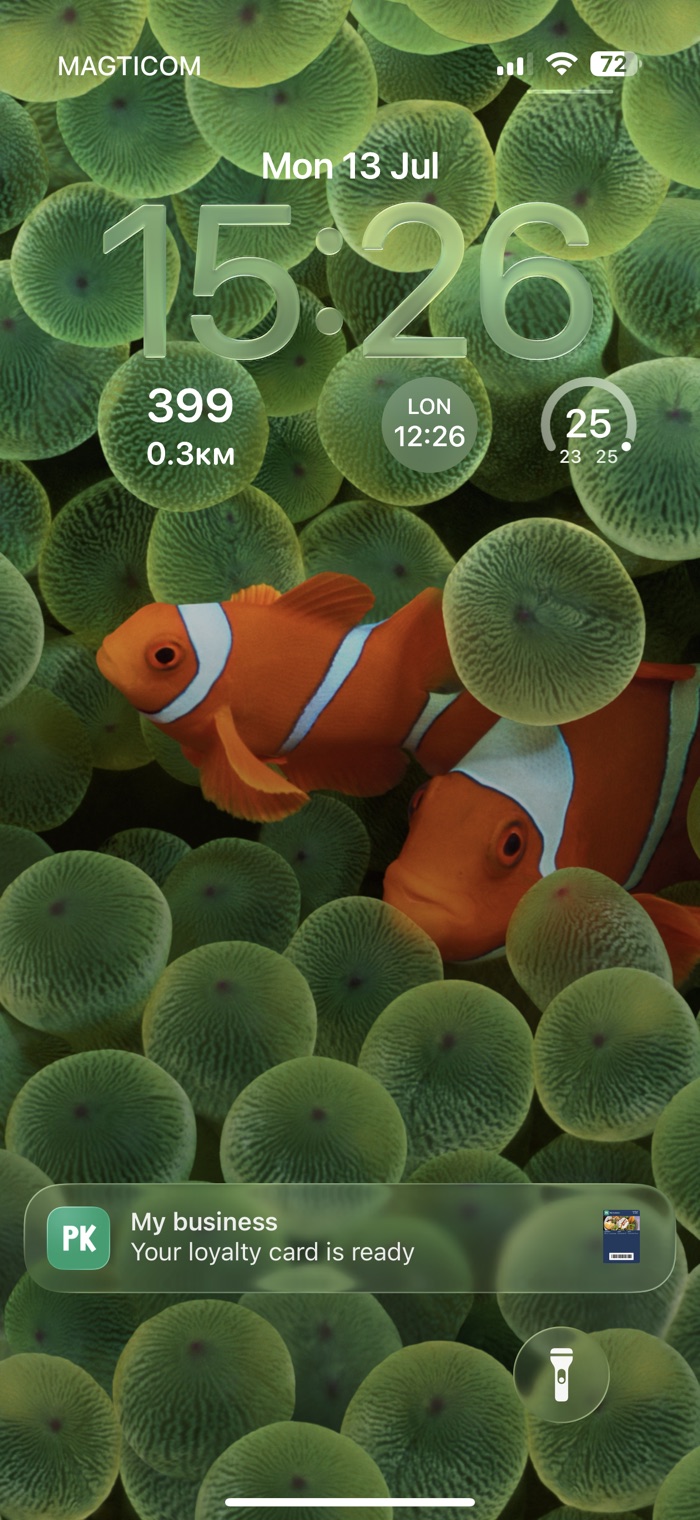
When the customer is near your venue, their card shows a reminder on the lock screen
Card barcode
The Wallet card shows a barcode (or QR code). This is what the cashier or you scan on each customer visit.
The barcode is unique to each customer and is tied to their loyalty card in your business.