
Campaigns
Send a short message straight to a customer's card in Wallet — no SMS, no mailing lists, no cost.
What a campaign is
A campaign is a short message that appears right on the customer's card in Apple or Google Wallet and pops up on their lock screen. It works through the card they already carry — they don't need to install anything extra.
How to send one
Open the Clients tab
Tap the megaphone icon next to your client list → "New campaign".
Write your message
Up to 160 characters. Keep it specific and useful — what exactly you're offering and why it's worth a visit.
Choose your audience
Send to everyone or target a specific segment — for example, customers who haven't visited in a while.
Tap "Send"
Confirm the send — delivery to customers' cards takes 1-2 minutes.
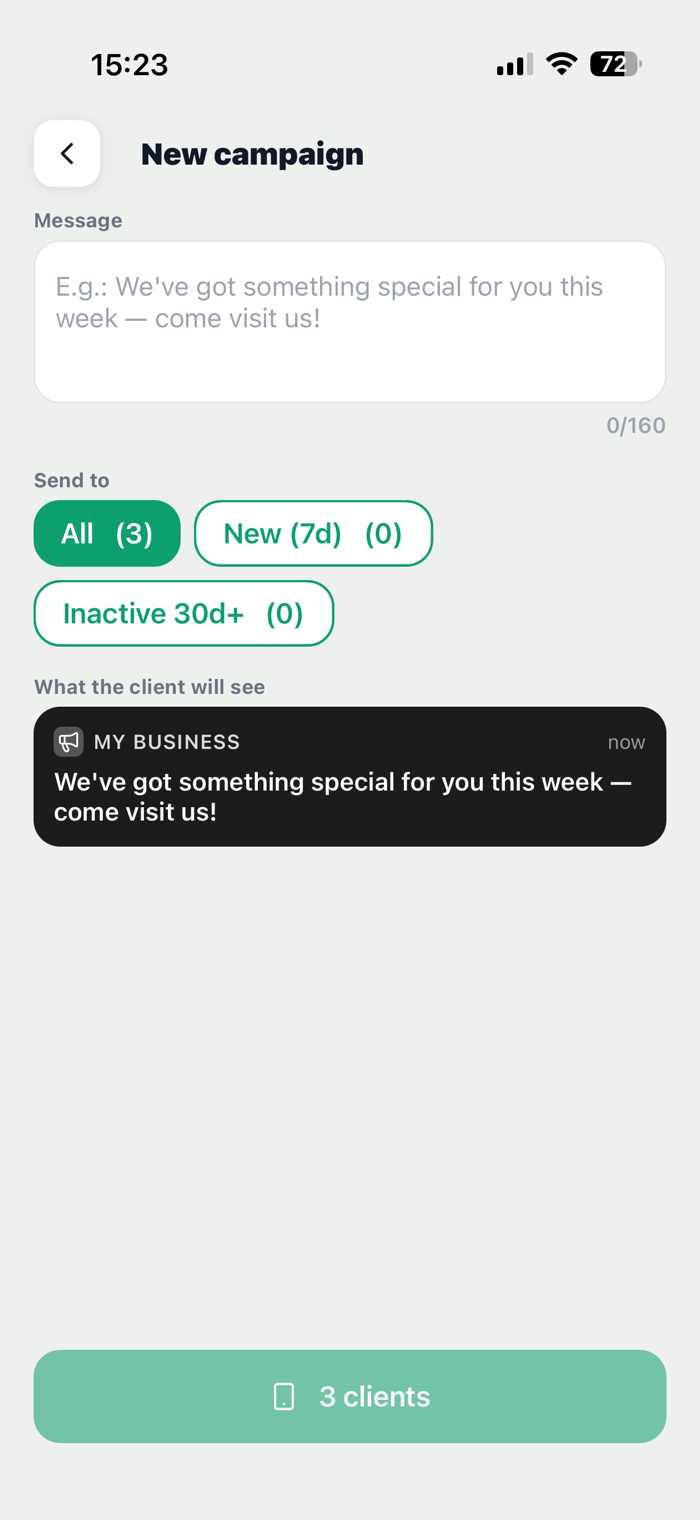
The “New campaign” screen: your message, the audience, and a preview of the notification
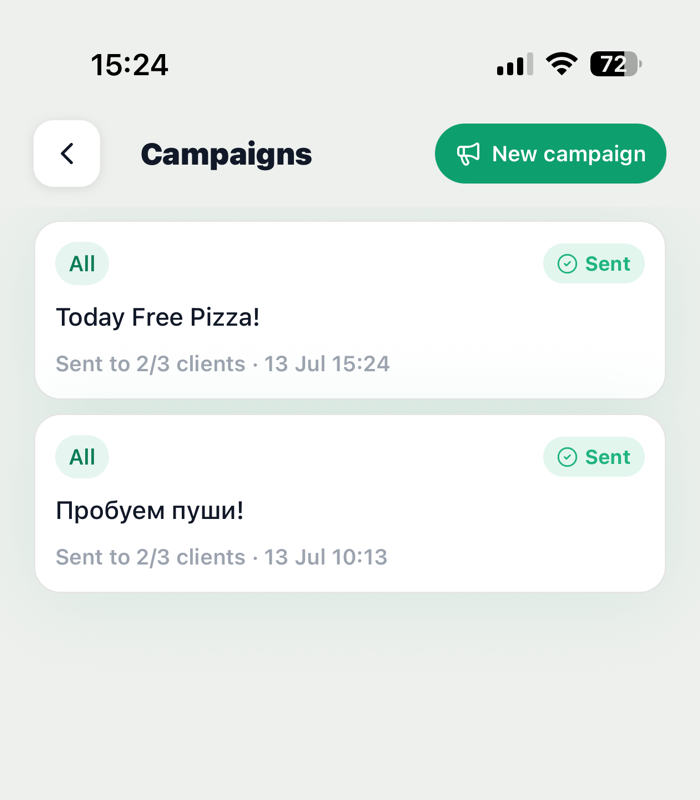
Your campaigns with delivery status — “Sent to N/M clients” and the date
Who to send it to
Pick one of four audience segments:
What the customer sees
The message arrives as a regular Wallet notification on the lock screen: the Wallet icon, your business name as the sender, and the message text. The customer doesn't need to open anything — the notification is visible right away.
On the back of the card in Wallet, the customer can see the full message text — just like the rest of the card's details.
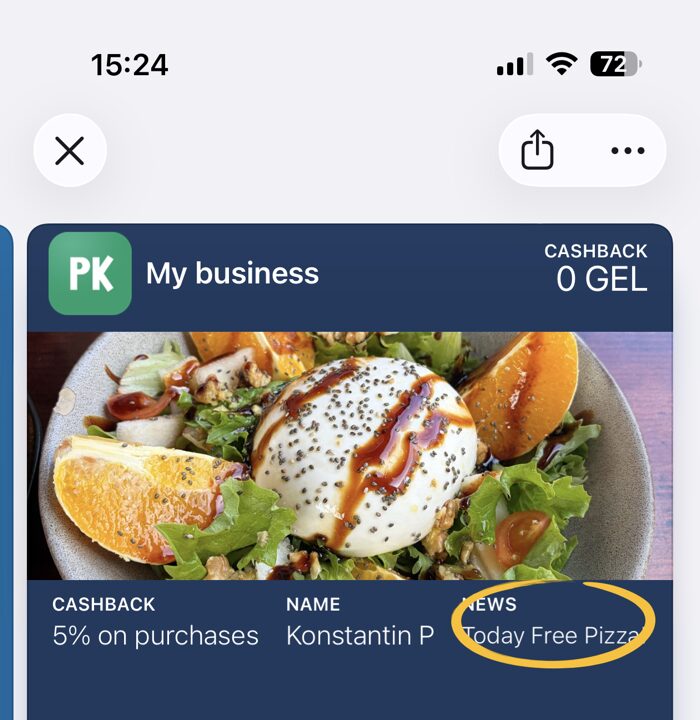
The message shows up in the “News” field on the customer’s Apple Wallet card