
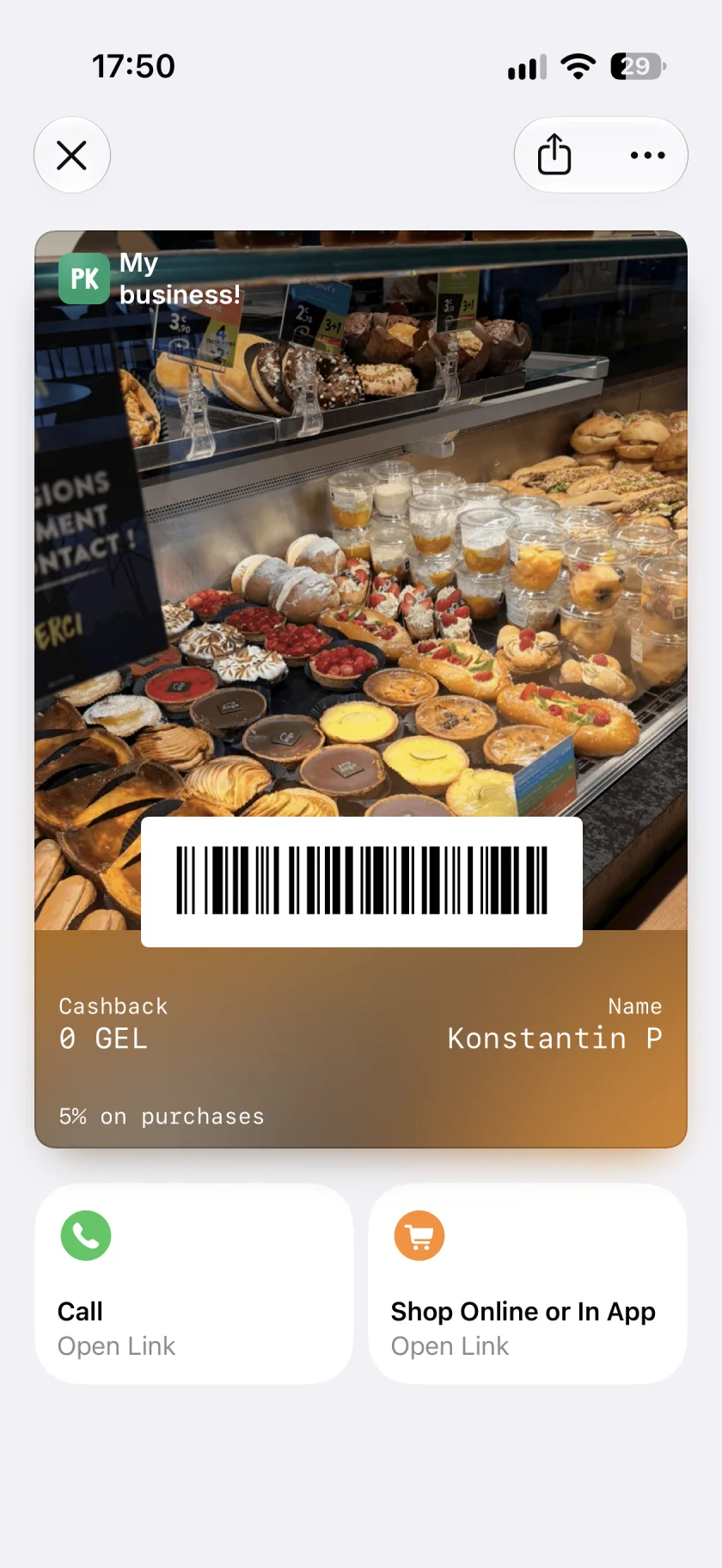
On the finished card below, a bakery photo fills most of the pass. Cashback, the customer name and the barcode remain visible, while Call and Shop actions sit underneath. For a customer looking at their reward balance, the next step is right there.
What changes in Apple Wallet in iOS 27?
iOS 27 adds Poster Generic, a new Wallet pass style, and featured actions, with up to two actions below a pass. These are separate capabilities: actions also work with other pass styles.
For a business owner, the useful change is the space available to present the brand. A photo of your products, shop or work can make the card recognizable when the customer opens it. The reward still needs to be clear: a beautiful image is little help if the customer cannot read their balance.
A poster that still works at the counter
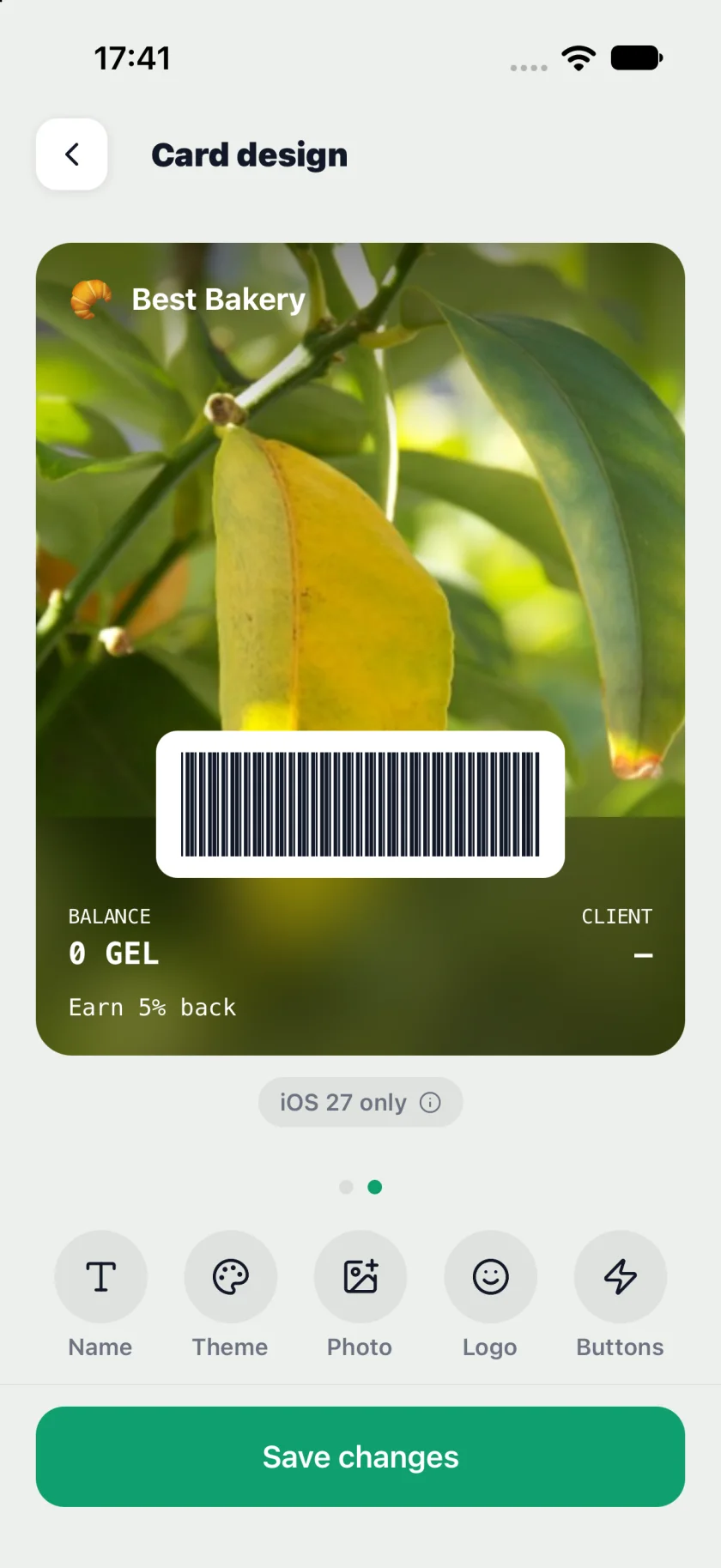
The Pikarta preview below uses a portrait photo, a logo and a short business name. The barcode has its own light area; the balance and customer fields sit beneath it. The “iOS 27 only” badge identifies the poster preview in the editor.
Use a photo with one clear subject. A bakery loyalty card might show its display case, while a salon might show the interior or a finished look. Keep the lower area visually calm, and check how the crop interacts with the logo. Put balances, reward terms and barcodes in their dedicated fields, rather than embedding them in the photo.
Two buttons: choose the next useful action
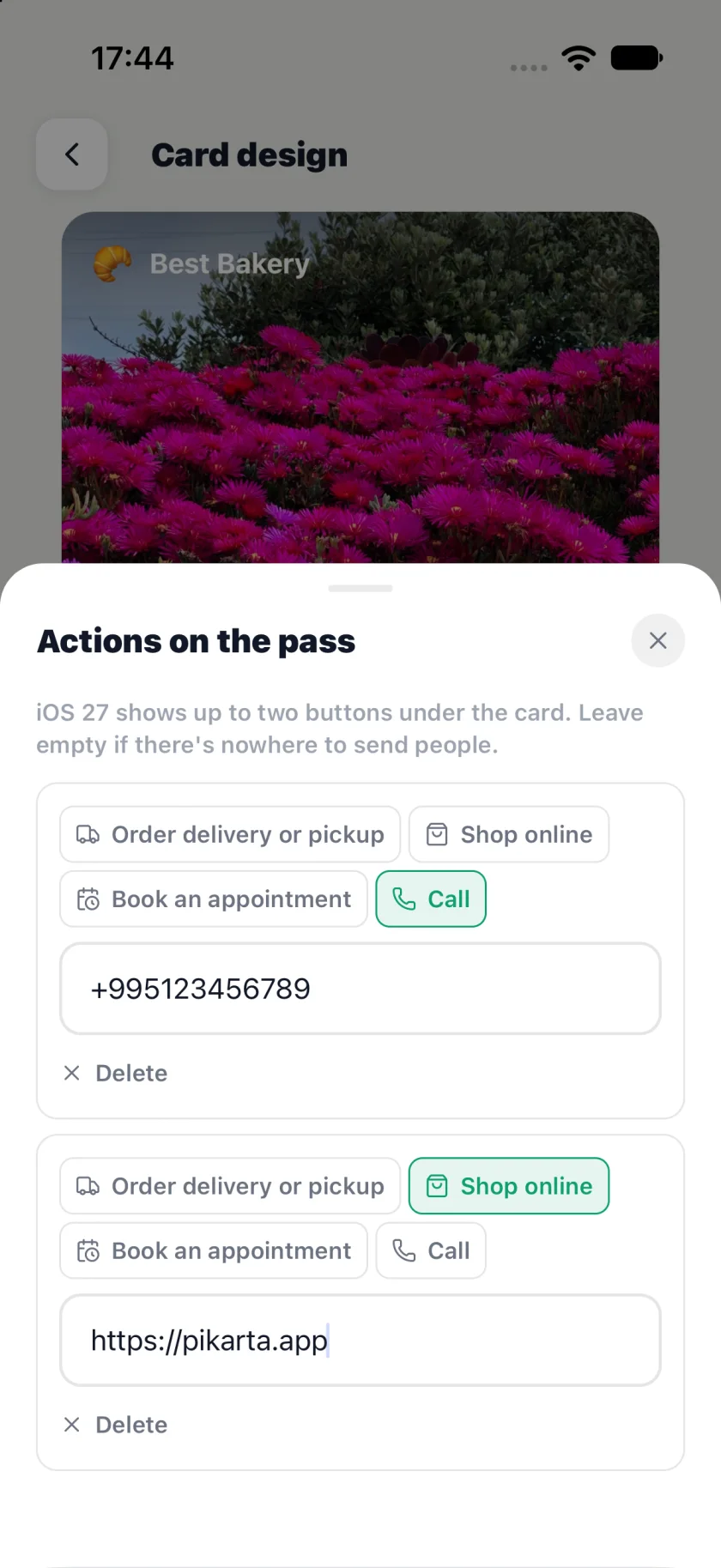
In the Pikarta 1.7 editor, the choices shown are order delivery or pickup, shop online, book an appointment and call. The screenshot has Call and Shop selected. The first needs a phone number; the other needs the destination link. Wallet supplies the displayed labels and icons.
Choose the actions that match a real customer need. For a café, that could be pickup ordering and a call. For a beauty salon, booking and calling may be more useful. Link straight to the booking or ordering page. A general homepage adds another search for the customer.
Two is the limit, not a target. If you have only one useful destination, keep one action. These buttons open the destinations you configure; adding a shop button does not create an online shop or a checkout inside the loyalty card.
How to prepare the design in Pikarta
Open Card Design
Swipe between the classic and poster previews. Prepare both views.
Set the name and logo
Use a short, recognizable business name and check it against the background.
Choose a photo and theme
Upload a separate portrait photo for the poster and adjust the crop. Check the text and label colors.
Open Buttons
Add an order, shop or booking HTTPS link, or a phone number for Call. Check each destination on a phone.
Save and check in Wallet
Review the actual customer card, including its barcode and actions. An editor preview is a useful guide; the final device view is the check that matters.
Saving starts an update for issued cards. Delivery depends on connectivity and Wallet, so allow time for changes to appear. The Pikarta: How to prepare the design in Pikarta covers individual controls. If you are starting a program from scratch, follow the Apple Wallet loyalty card setup guide first.
What about iOS 26 and Android?
In Pikarta, the poster is intended for Apple Wallet on iOS 27. Earlier iOS versions and Android keep the classic presentation. Prepare the classic banner as well as the portrait artwork, and check that the name and reward are clear in both views. The iOS 27 action buttons are unavailable on earlier iOS versions.
A new appearance does not require a different reward promise. Keep the same stamps, points, cashback or discount rules across devices. For the platform differences, read Apple Wallet versus Google Wallet. If you are comparing pass-building tools and a managed loyalty program, see Pikarta and Passcreator.